Turf Varieties
A turf variety is a grass you sell. Each one holds its names, pricing, pallet and weight figures, accounting links and volume pricing — so that once it's set up, it flows correctly through orders, cut sheets, delivery and invoicing.
Where to set them up
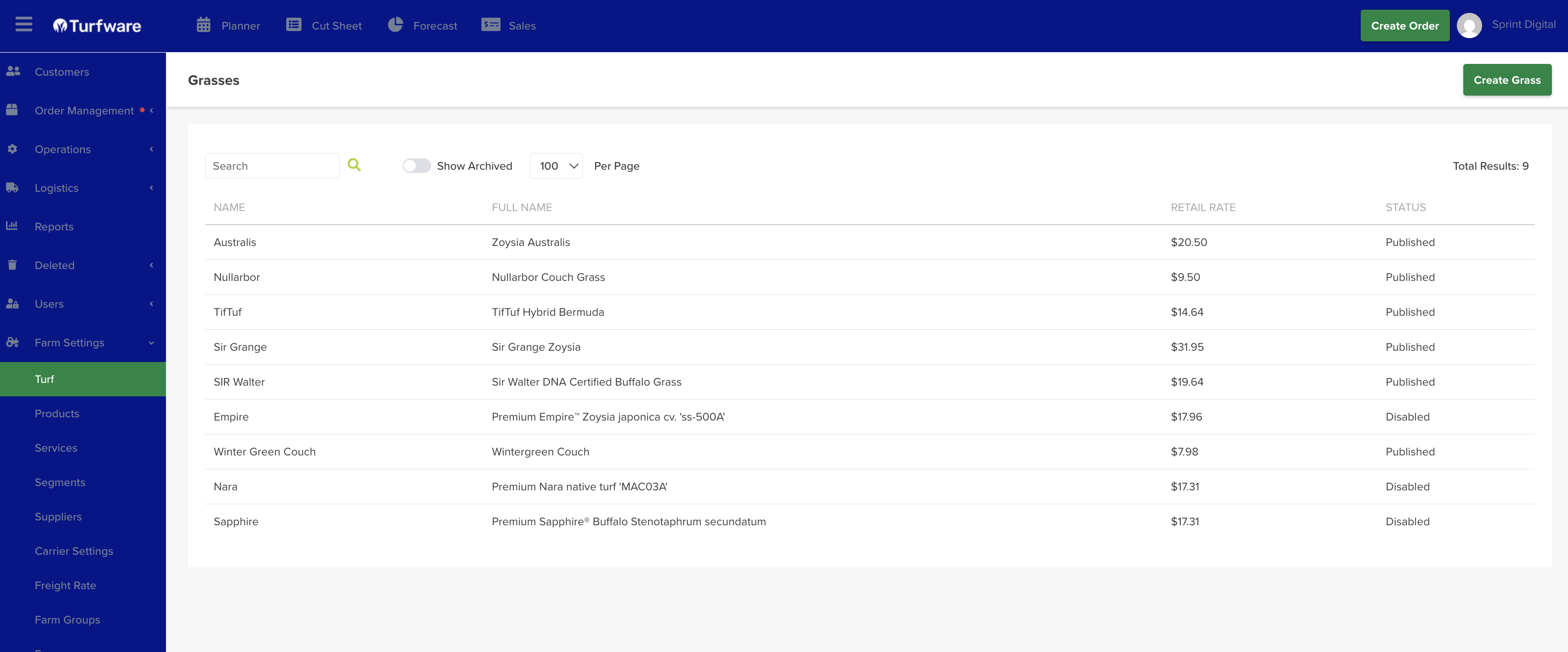
Go to Farm Settings → Turf. Click Create Grass to add a new variety, or click any row to edit an existing one.
1. Naming
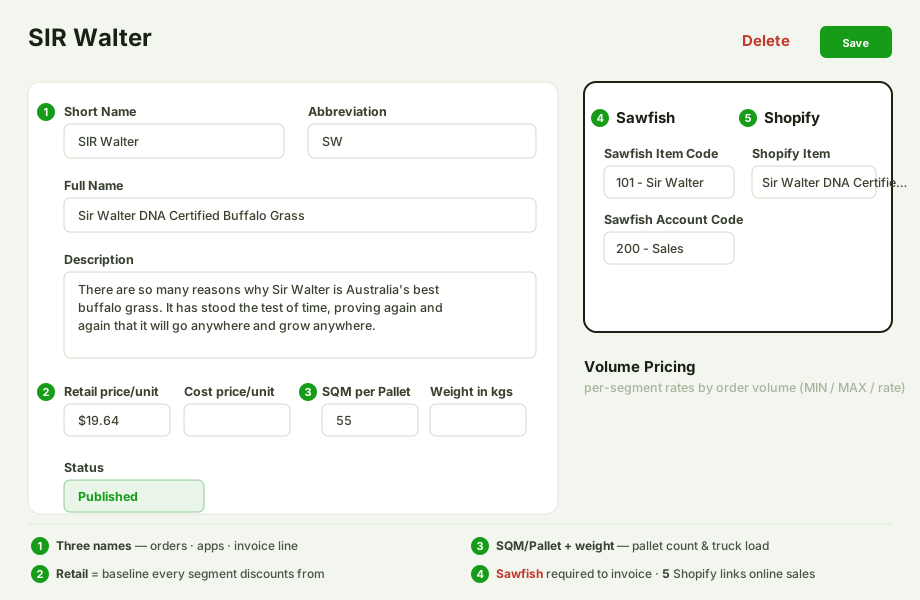
A variety has three names, each used in a different place — so it reads clearly for staff, for drivers, and for customers:
- Short Name — the name shown on orders. Keep it short (e.g. Sir Walter).
- Abbreviation — the shorthand shown in the mobile apps (Delivery & Cutting), where space is tight.
- Full Name — used on invoice line items; what the customer sees on their invoice (e.g. Sir Walter DNA Certified Buffalo Grass).
2. Description
Internal notes about the turf — characteristics, care, ideal use. For your team only; not shown to customers.
3. Price settings
- Retail Price — your full retail sell price. The baseline every other segment is discounted from.
- Cost Price — what the turf costs you (production cost, or wholesale purchase price if bought in). Used for margin reporting.
4. Pallet & weight
- SQM per Pallet — how many square metres fit on a pallet. Drives the pallet count on every order.
- Weight (kg) per SQM — average weight of one square metre. Used to calculate pallet weights and total truck load weight for scheduling.
5. Status
- Draft — still being set up; does not appear on orders.
- Published — live and available to sell.
- Disabled — hidden from new orders but kept on record.
- Delete — removes the variety.
6. Sawfish settings (required for invoicing)
Required for invoicing
These fields link the variety to your accounting system. If they aren't completed, Turfware cannot generate an invoice for orders containing this turf, and nothing syncs to your accounts. Complete both before publishing.
- Sawfish Item Code — the item this variety maps to in your accounting system. Create the matching item there first, then select it here.
- Sawfish Account Code — the chart-of-accounts code revenue from this variety posts to.
Create the matching item and account in Sawfish first, then enter their codes here — Turfware syncs the invoice to Sawfish (see Sawfish Configuration).
7. Shopify
If you sell this variety online, link it in the Shopify panel on the right-hand side of the page (next to Sawfish): in the Shopify Item field, search for and select the matching item from your Shopify catalogue. Without the link, the online order can't be invoiced. See the Processing Shopify Orders guide for the full flow.
8. Volume pricing
Volume pricing lets you offer discounted rates by order size, per customer segment. Set the volume ranges (e.g. 0–100 m², 100–500 m², 500 m²+) and each segment's rate per range; Turfware automatically applies the right price on an order based on the quantity ordered.
Save
Click Save. If the status is Published, the variety is immediately available on new orders, apps, cut sheets and invoicing.
Archiving
Retire a turf variety you no longer use by Archiving it — it's hidden from the list and no longer available to select on new orders, but kept (not deleted). Flip Show Archived on the list to see archived records, and Unarchive to bring one back.
The Archive action and Show Archived toggle work the same across all these records — see Archiving a customer for a picture.