Adding a customer
Create a new customer
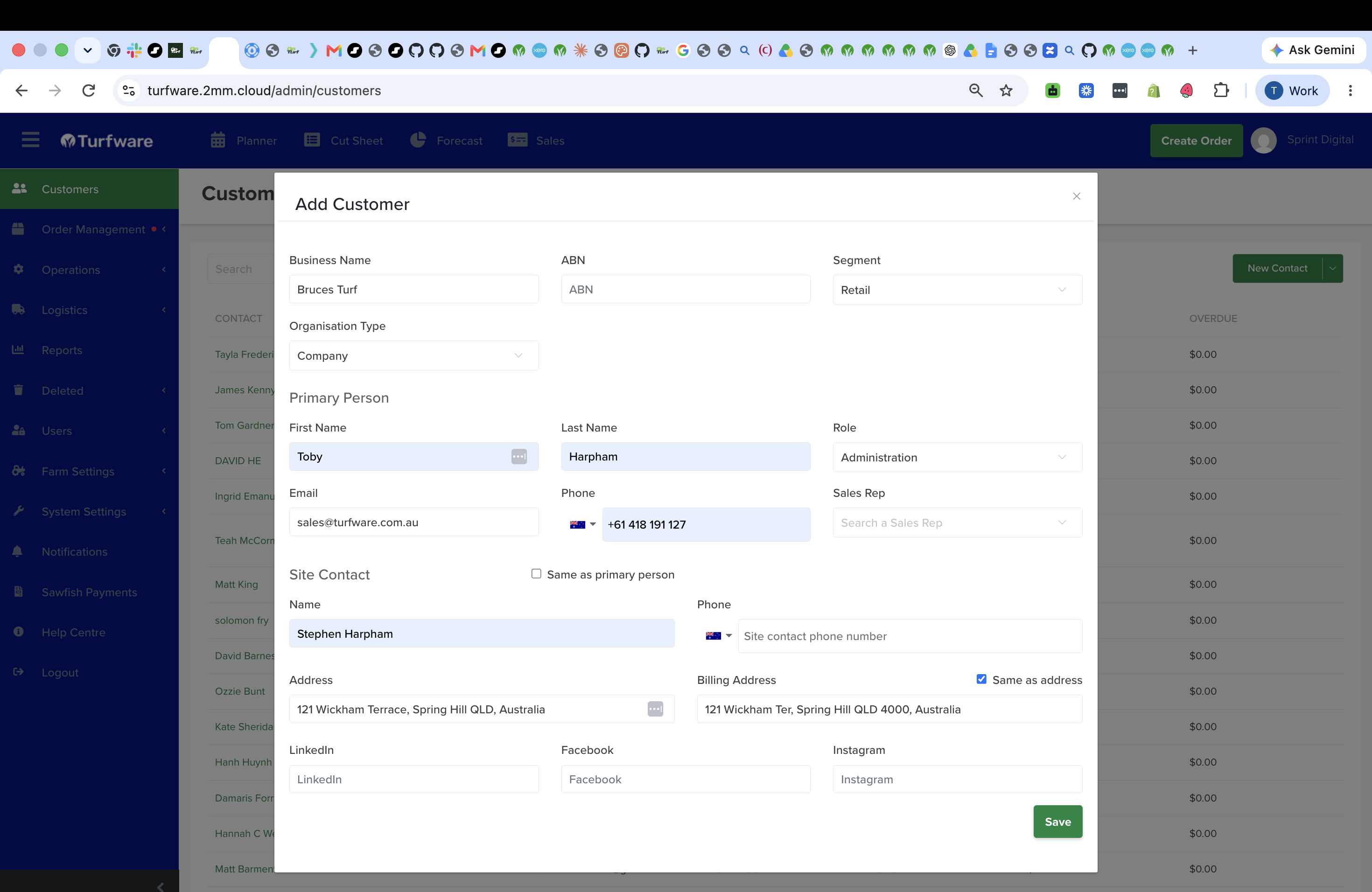
On the Customers page, click the green New Contact button (top right).
Bulk import
Click the dropdown arrow next to New Contact and choose Import Contact – CSV to bulk-import customers from a spreadsheet.
Complete the customer's details. Two fields matter most:
- Organisation Type — Company or Individual. This dictates how the customer is set up in your accounting system (Sawfish) and how you search for them in Turfware (business name vs a person's name).
- Segment. This dictates the pricing the customer receives, as per your segment pricing controls (e.g. Wholesale, Retail, Trade).
The duplicate check — Confirm Sawfish Link
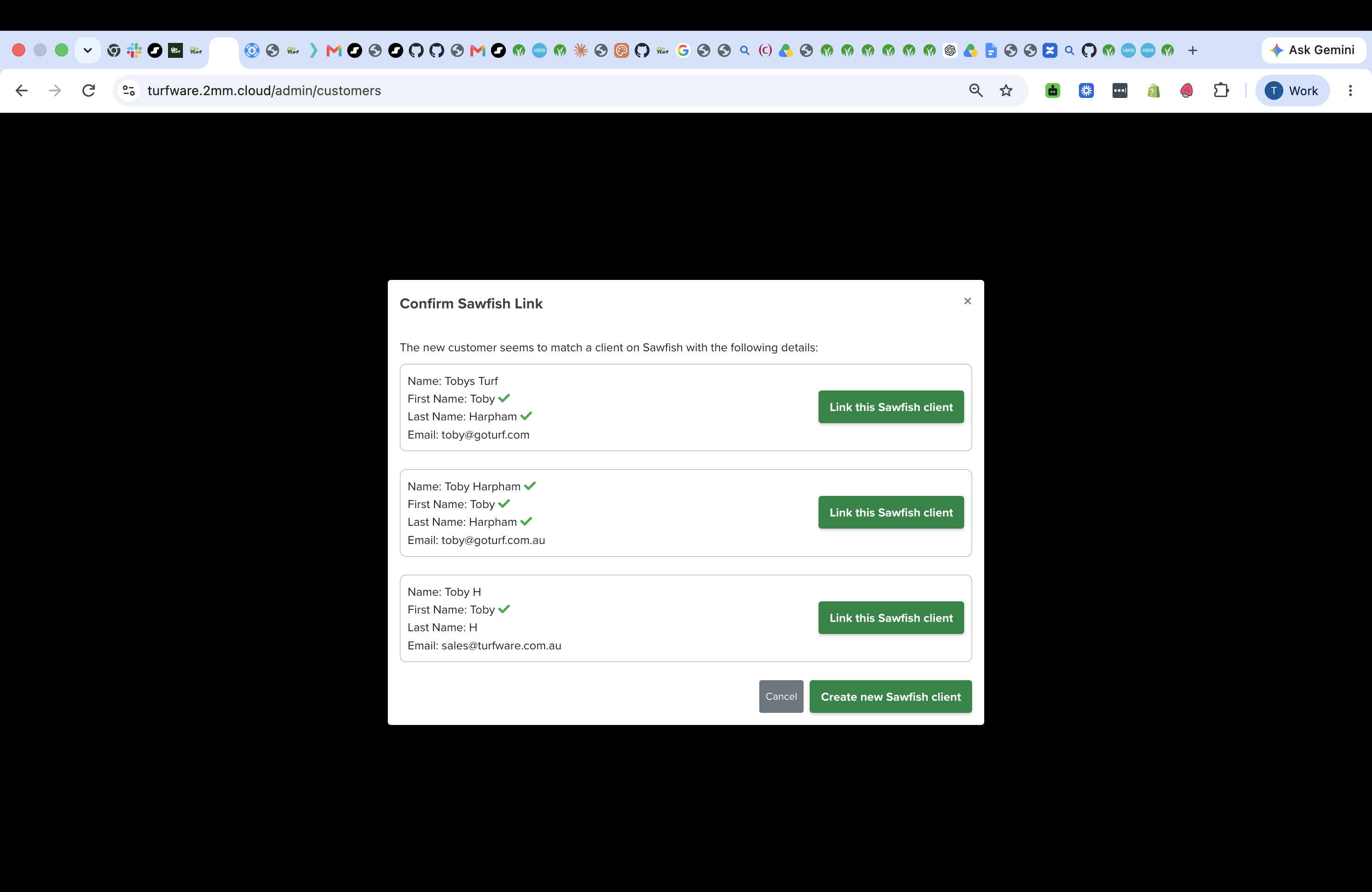
When you press Save, Turfware checks the new customer against existing customers in the Turfware / Sawfish database to make sure you're not creating a duplicate.
If it finds a possible match, the Confirm Sawfish Link window appears, listing the Sawfish clients that look similar — with green ticks showing which details match (name, first name, last name):
- If one of them is this customer, click Link this Sawfish client on that row — the Turfware customer is linked to the existing Sawfish client, so invoices sync to the right account.
- If it's genuinely a new customer, click Create new Sawfish client.
- Cancel backs out without saving.
Why this matters
Linking to the correct Sawfish client keeps one clean customer record across Turfware and your accounts — no duplicate invoices, no split payment history.