Using the Harvesting App
Logging in and choosing a role
After signing in, choose the role you're working as:
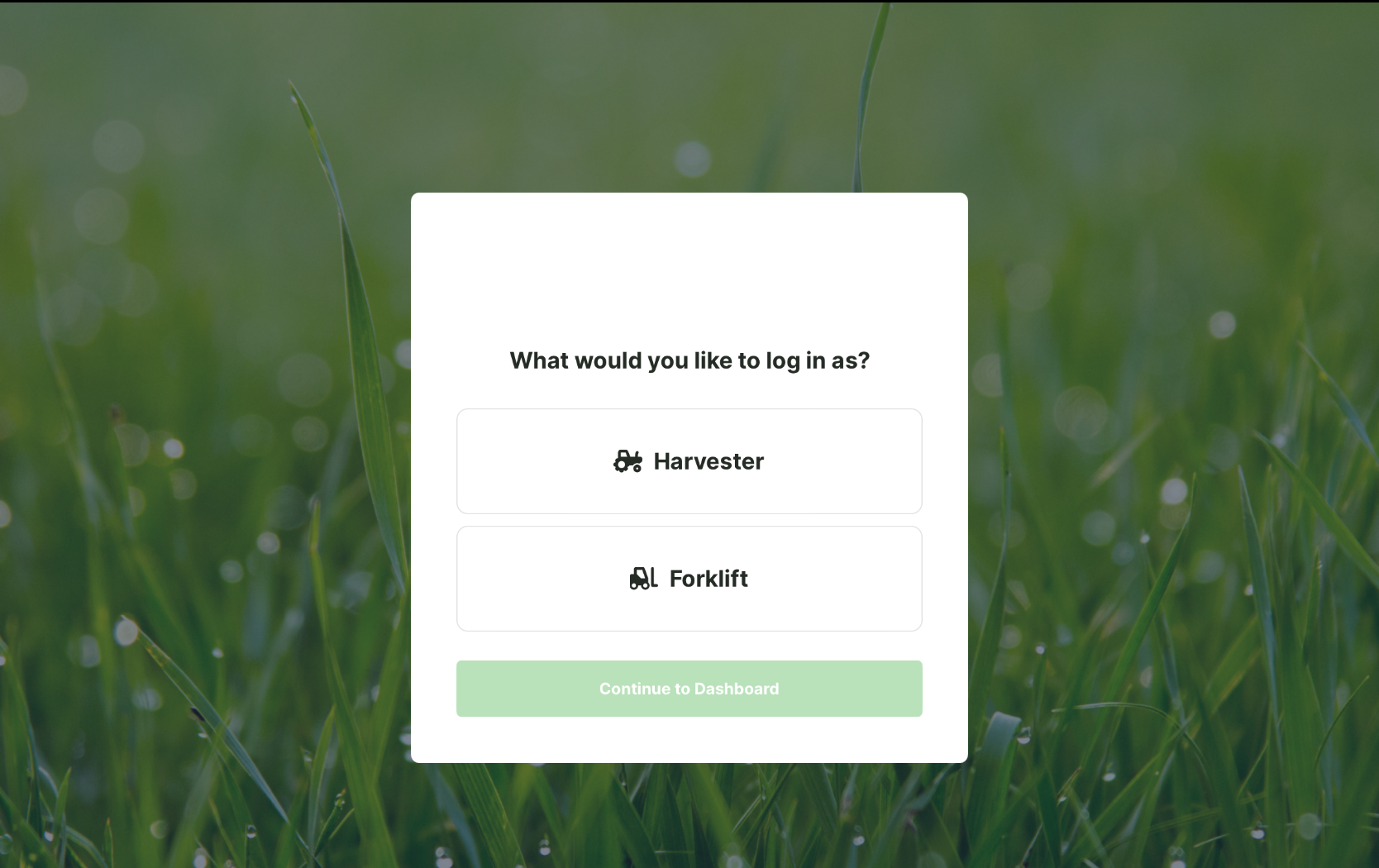
- Harvester — cutting the turf and marking it harvested.
- Forklift — moving the cut pallets and marking them ready to dispatch.
Pick one and tap Continue to Dashboard. Both roles work from the same cut sheet, but each can only set the statuses that belong to its part of the job (see below).
The dashboard
The Daily Orders dashboard shows the day's cutting at a glance, broken down by turf variety.
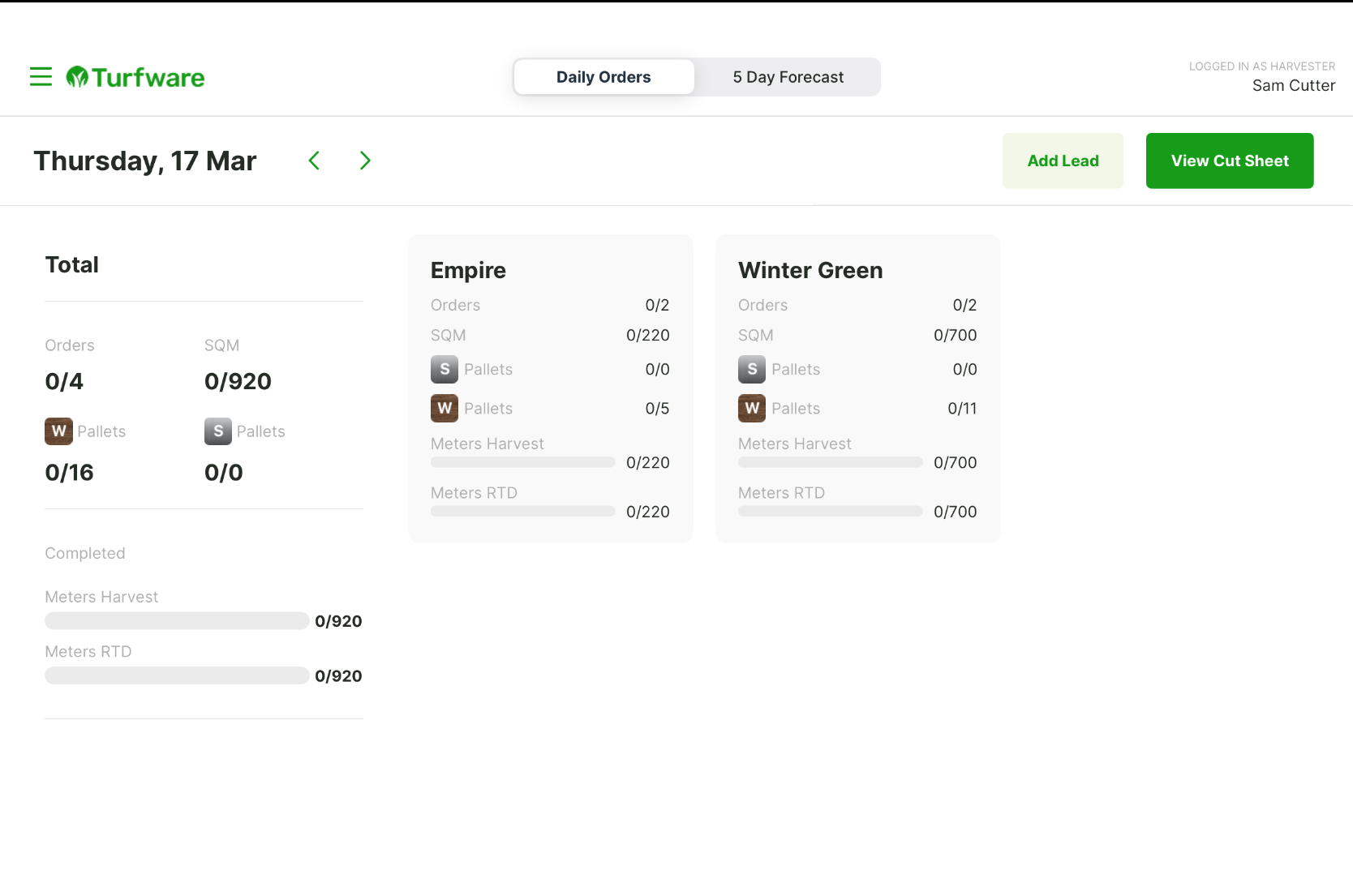
- Use the arrows next to the date to change day. The top right shows who's logged in and their role.
- The left panel is an overall snapshot of the day:
- Total Orders — harvested orders against the total for the day.
- Total Area (SQM) — harvested area against the total.
- W Pallets / S Pallets — harvested Wooden and Steel pallets against their totals.
- Meters Harvested and Meters RTD (Ready to Deliver) — progress bars for how much is cut and how much is ready to dispatch.
- The right panel breaks the same figures down per grass variety (for example Empire and Winter Green), so you can track each one. Tap a card to focus on just that variety.
- Toggle to the 5 Day Forecast tab at the top to see cutting orders for the upcoming five days.
Seeing the harvest list
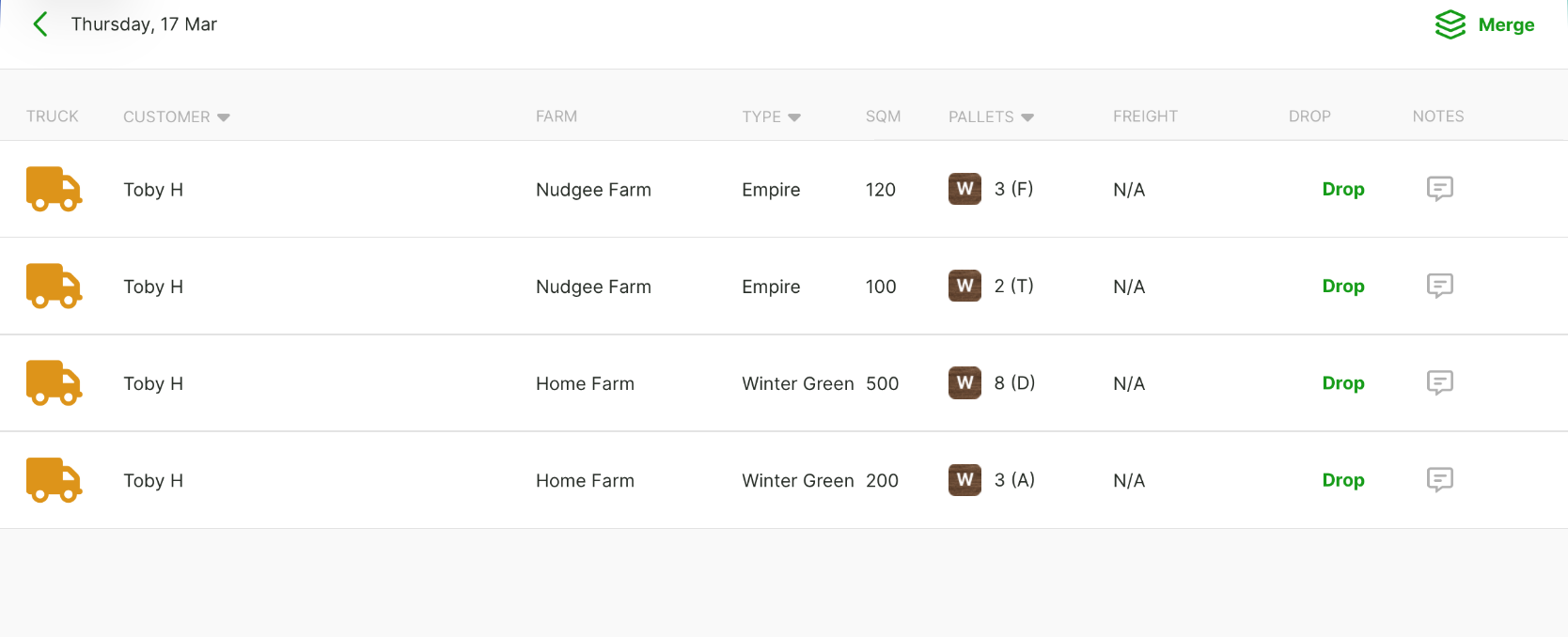
Tap the green View Cut Sheet button at the top right to open the day's cut sheet — every order to be cut, with its truck, customer, farm, variety and SQM. (This also clears any variety filter you set on the dashboard.)
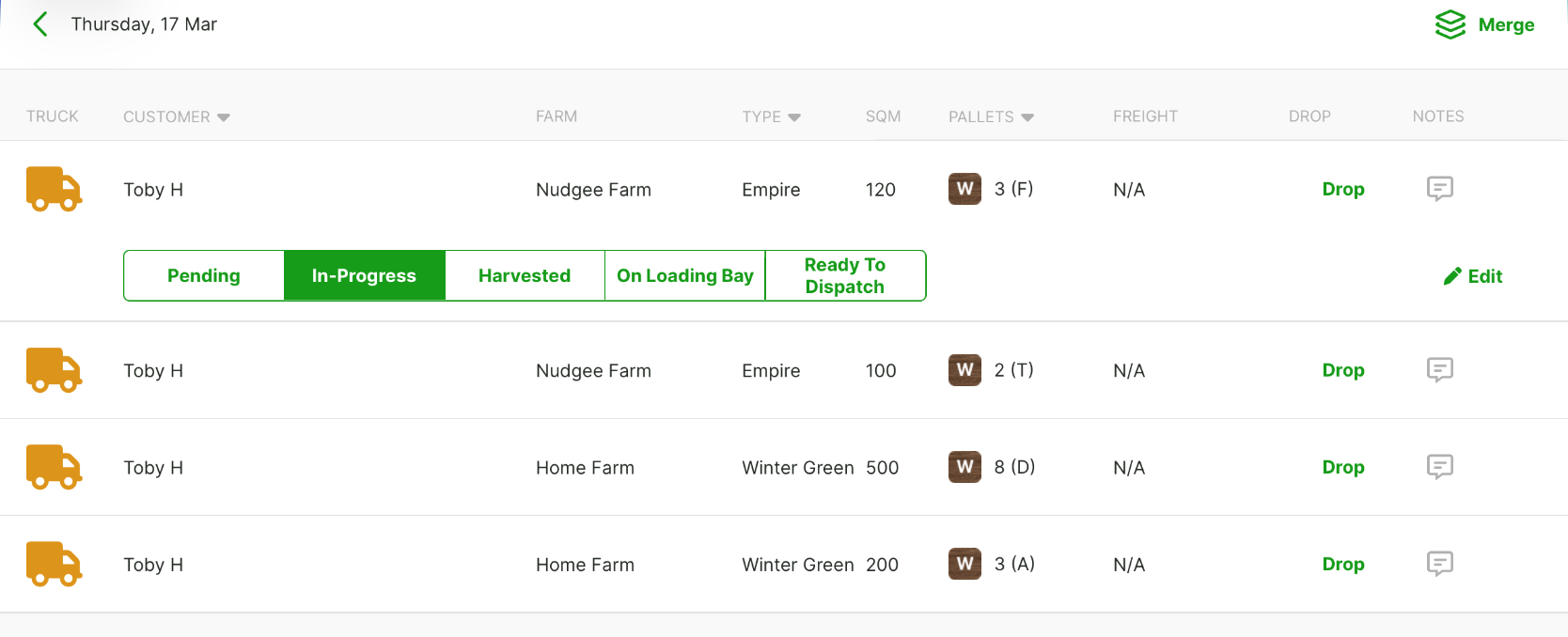
Tap an order to expand it. The expanded row shows a status bar across the bottom and an Edit button.
Completing an order
You complete an order by moving it along its status: Pending → In-Progress → Harvested → On Loading Bay → Ready To Dispatch. Expand the order and tap the status you want to set. Each role can only set the statuses for its part of the job — tapping one that isn't yours shows a not authorized message.
As a harvester
Work the order up to Harvested:
- Pending → In-Progress as you start cutting.
- Harvested once the turf is cut. When you mark an item Harvested, the app automatically stamps it with a harvest tag for the day (shown on the truck icon), so each cut can be traced back.
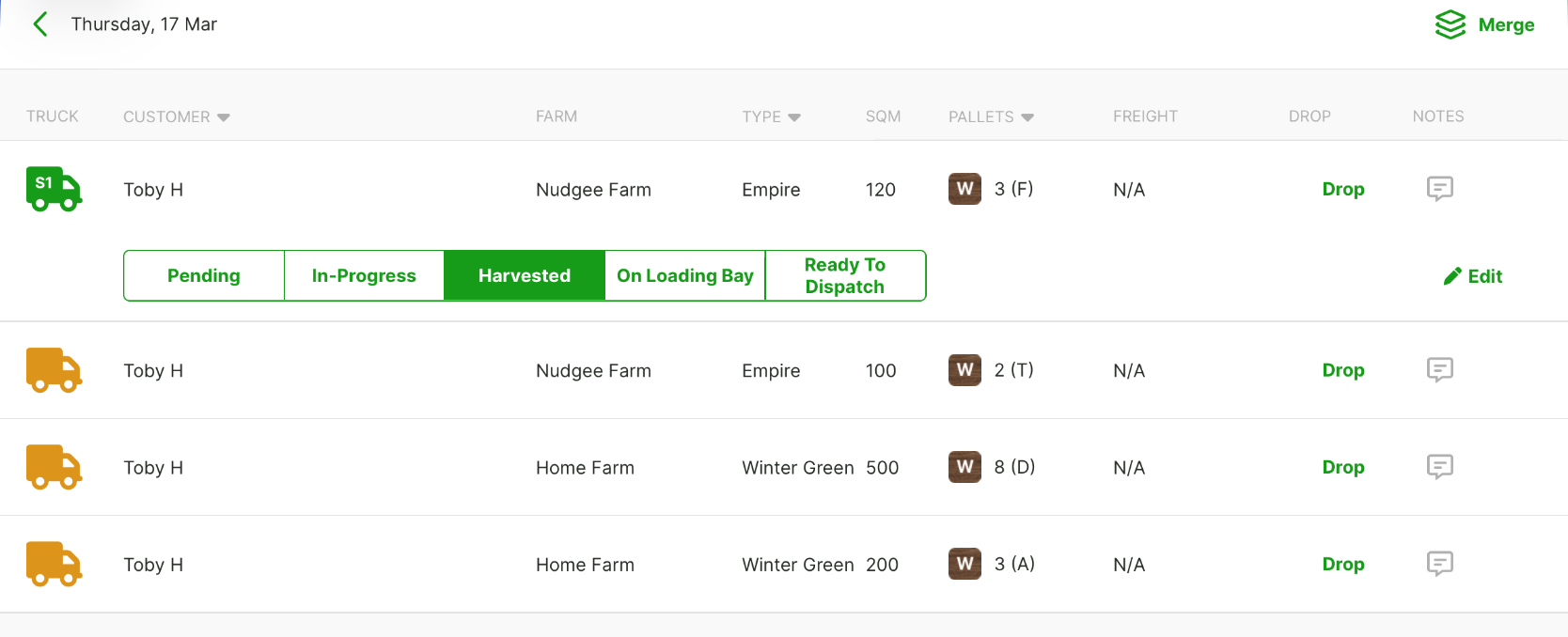
The dashboard's Meters Harvested bar moves up as orders are marked Harvested.
As a forklift operator
Once the turf is cut, the forklift operator takes it through to dispatch:
- On Loading Bay when the pallets are moved to the bay.
- Ready To Dispatch (RTD) once they're staged and ready to go out. The order row turns green to show it's RTD.
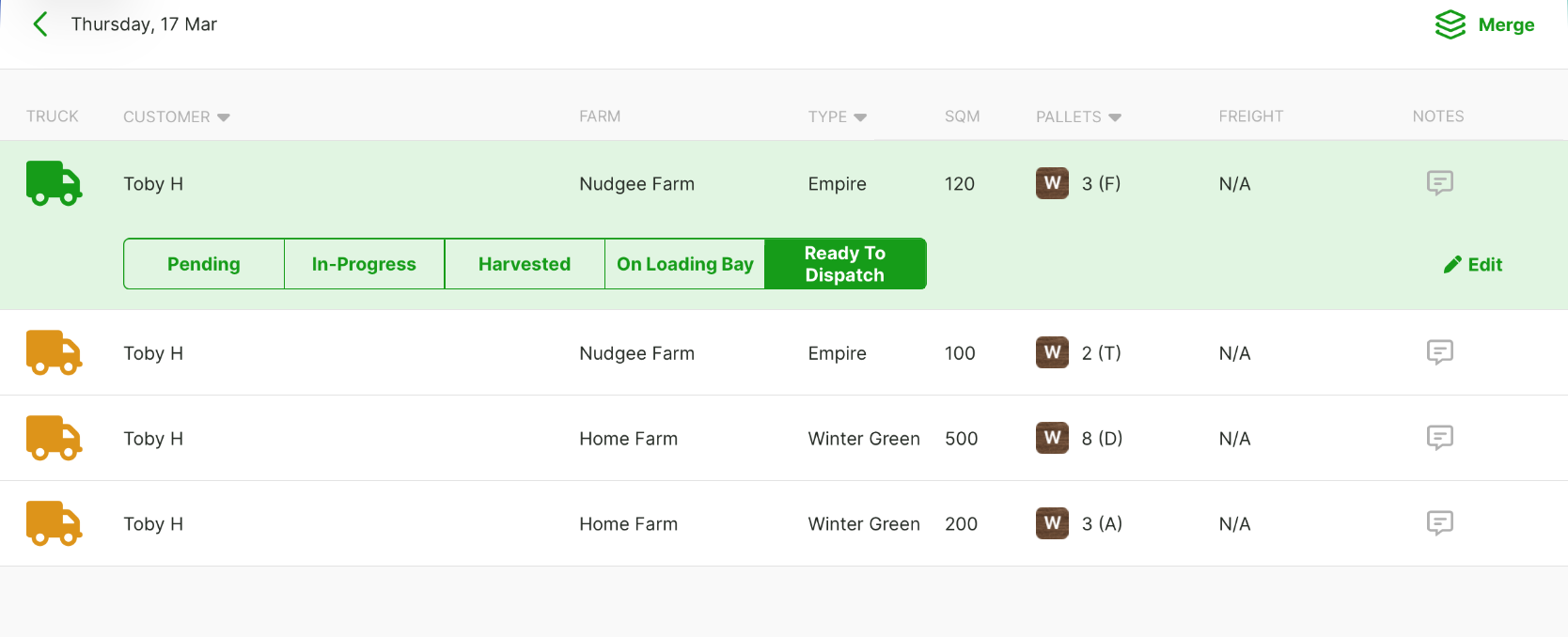
The dashboard's Meters RTD bar moves up as orders are marked Ready To Dispatch.
Editing an order
Expand an order and tap Edit to correct its details. The Update Order form appears where you can update:
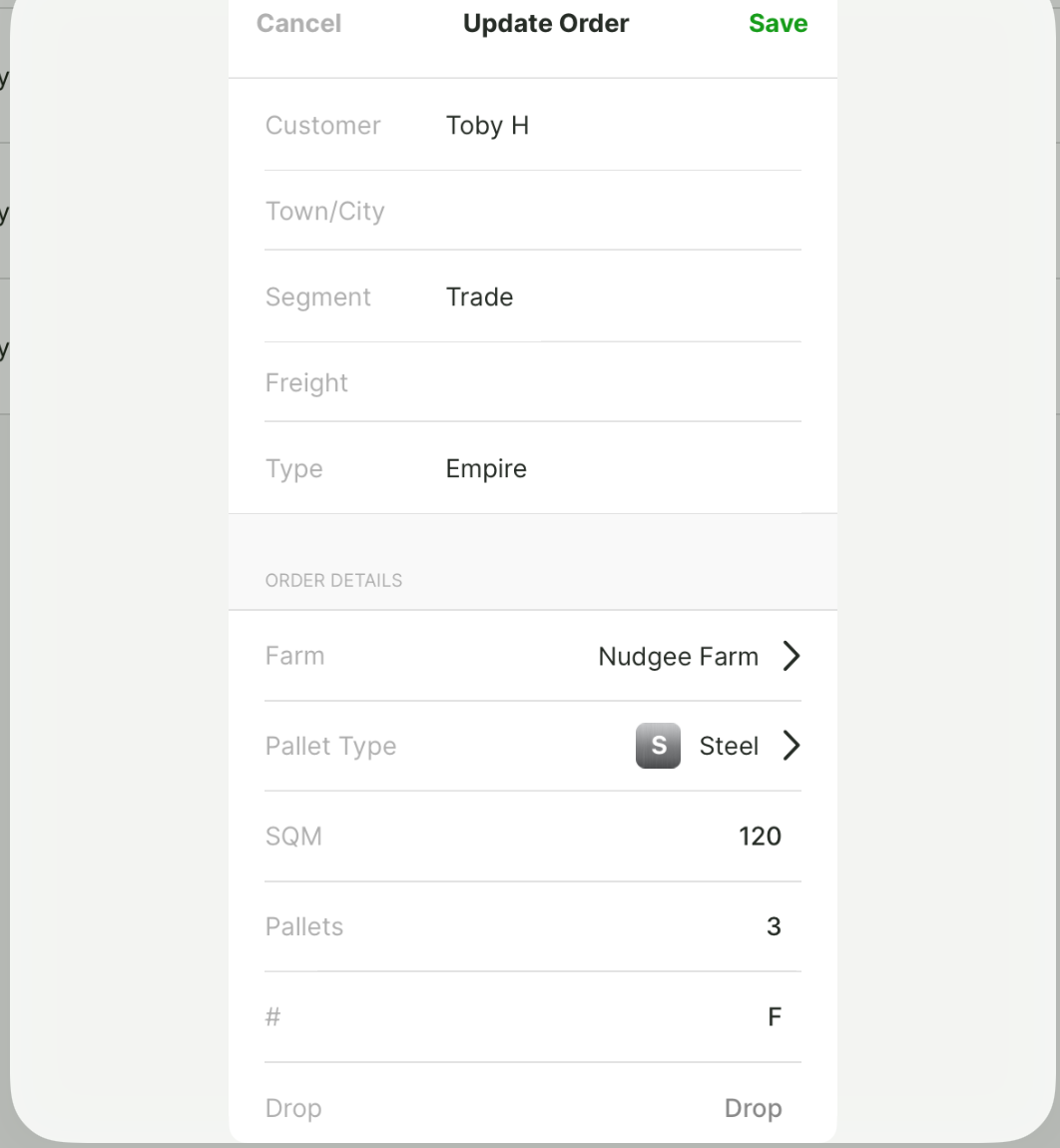
- Farm — tap Farm and select the farm the turf is cut from.
- Pallet Type — Wood or Steel.
- SQM — the square metres cut.
- Pallets and # — the pallet count and pallet code.
- Notes — any cut-sheet notes for the order.
Harvesters also get a Drop field for recording the drop against the cut. Save your changes when you're done.