Products
Products are the physical stock items you sell alongside or instead of turf — fertiliser, top dressing, tools, levies. Each one holds its names, pricing, inventory, accounting links and volume pricing.
Where to set them up
Go to Farm Settings → Products. Click Create Product to add a new one, or click any row to edit an existing one.
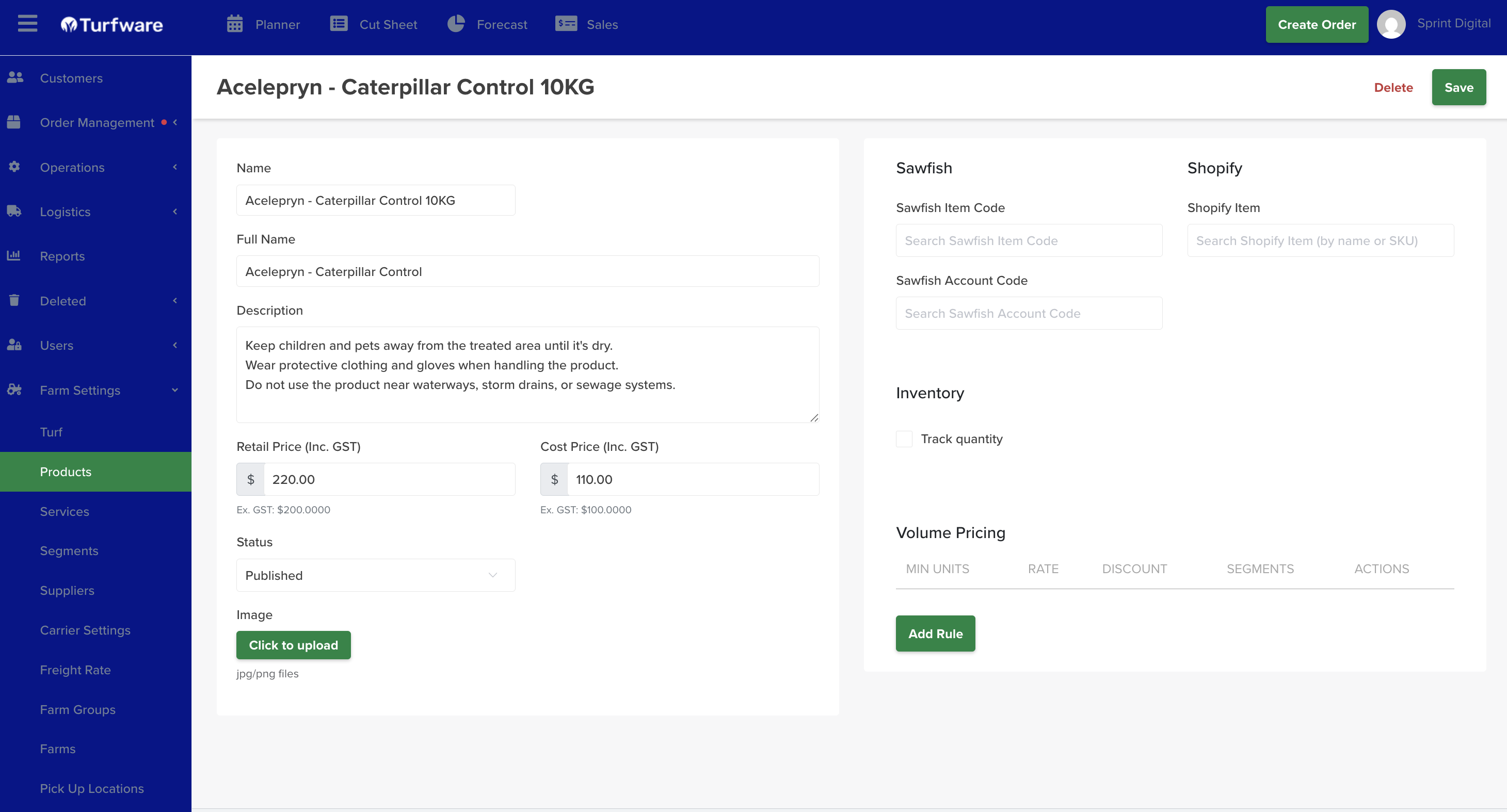
1. Naming
- Short Name — the name shown on orders.
- Abbreviation — the shorthand shown in the mobile apps.
- Full Name — used on invoice line items; what the customer sees on their invoice.
2. Description
Internal notes about the product — for your team only; not shown to customers.
3. Price settings
- Retail Price (RRP) — full retail sell price. The baseline other segments discount from.
- Cost Price — what the product costs you (purchase / wholesale cost). Used for margin reporting.
4. Track Quantity
Recommended: turn this on to manage inventory through Shopify
With Track Quantity enabled, Turfware keeps this product's stock level in sync — so what's available online and what you have on hand stay aligned, and you don't oversell. We recommend enabling it for any product you sell on Shopify.
5. Status
- Draft — not shown on orders.
- Published — live and available to sell.
- Disabled — hidden from new orders but kept on record.
- Delete — removes the product.
6. Sawfish settings (required for invoicing)
Required for invoicing
Sawfish Item Code (the item in your accounting system) and Sawfish Account Code (the revenue chart-of-accounts code) must both be set, or Turfware can't invoice this product.
Create the matching item and account in Sawfish first, then enter their codes here — Turfware syncs the invoice to Sawfish (see Sawfish Configuration).
7. Shopify
Link the product to its matching Shopify item. With Track Quantity on (above), stock stays in sync between Turfware and Shopify. See the Processing Shopify Orders guide.
8. Volume pricing
Discounted rates by order volume, per customer segment — automatically applied on orders based on the quantity ordered.
Save
Click Save. If the status is Published, the product is immediately available on new orders.
Archiving
Retire a product you no longer use by Archiving it — it's hidden from the list and no longer available to select on new orders, but kept (not deleted). Flip Show Archived on the list to see archived records, and Unarchive to bring one back.