Using the Delivery App
The front screen
When a driver logs in, they land on the front screen for the day.
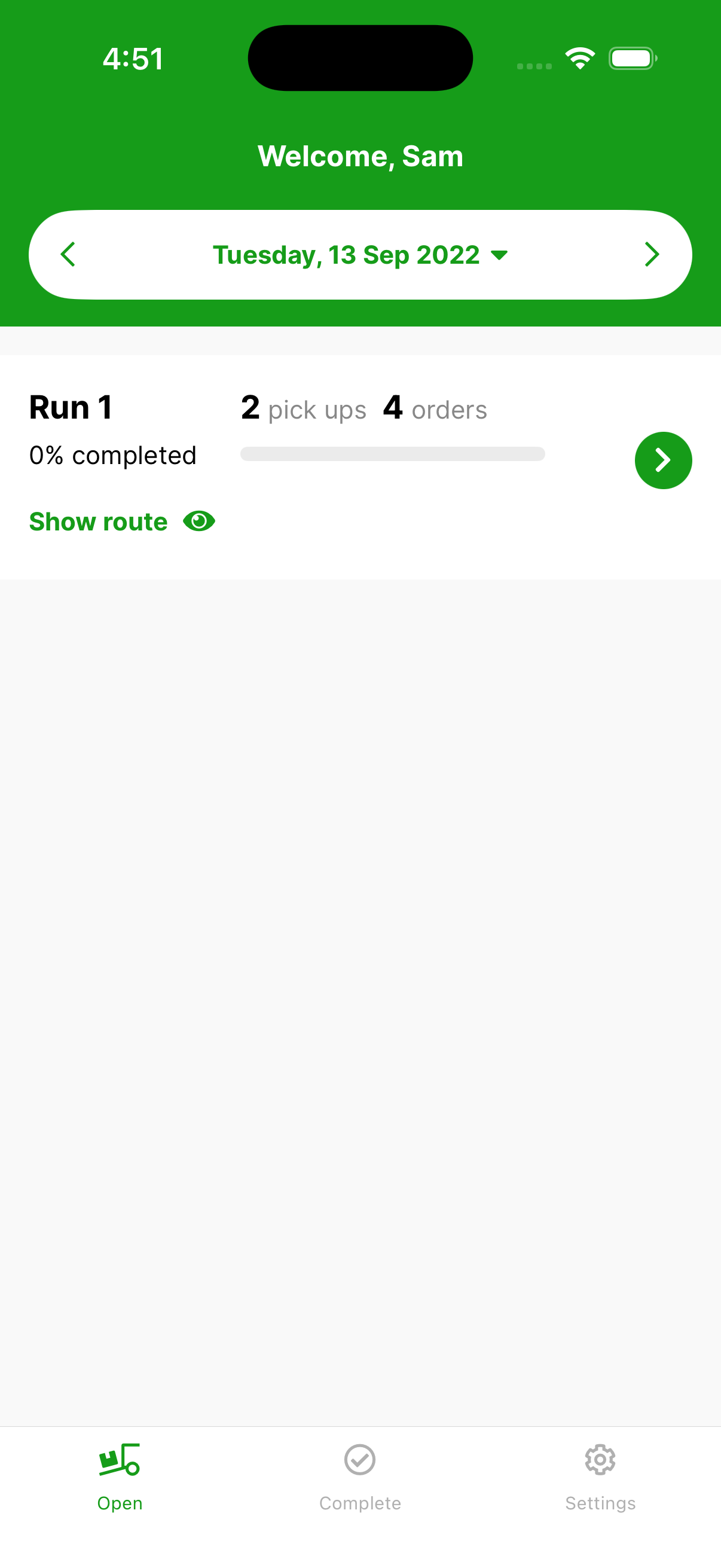
- Welcome, [name] and the delivery date sit at the top.
- Each run shows its number of pick ups, its number of orders, and how much of the run is completed.
- Tap the green arrow on a run to open it and work through its Pickup and Delivery stops.
- The bottom tabs switch between Open (runs still to do), Complete (finished orders) and Settings.
The delivery list is ordered by the priority the admin has assigned to each order.
Changing the date
Use the arrows either side of the date to move day by day. For a bigger jump, tap the date to open a date picker and scroll through months or years. Tap Today in the top-left of the picker to jump back to the current day.
Viewing the route
Tap Show route on a run to plot its stops on a map.
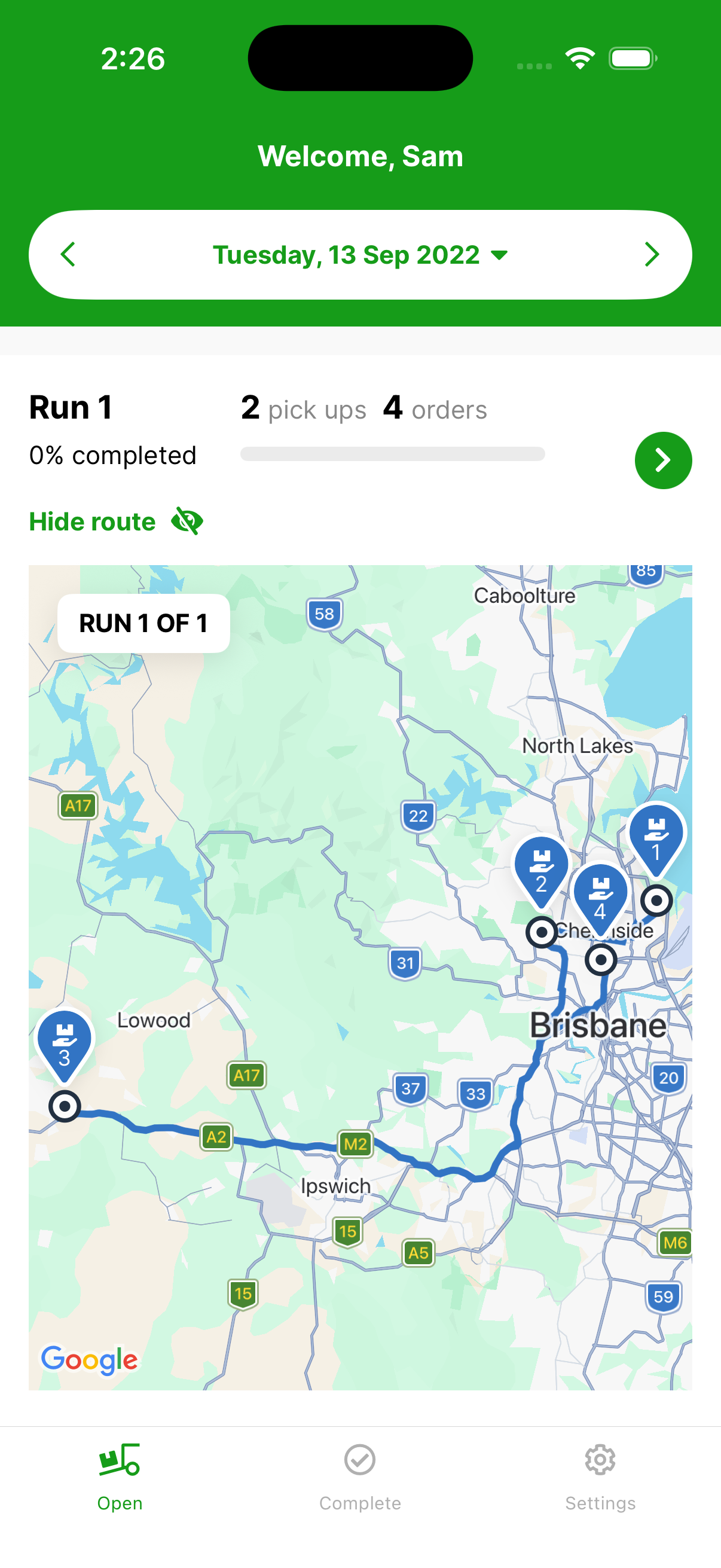
Each stop is numbered in the order it should be delivered. Tap Hide route to collapse the map again.
The pick list
The pick list groups the run's orders by dispatch location. Tap a dispatch location to see every order under it, then tap an order to open its details. For each order you'll see:
- Pallets — the number of pallets per order.
- Pallet # — the pallet code for the order.
Automatic customer emails
Once an order is confirmed as delivered, two emails go out automatically:
- To the customer — the delivery verification photo, their signature (if they were present to sign), and a request for feedback.
- To the next customer on the run — an estimated time of arrival (ETA) based on the driver's current location.