Delete
The Delete function is a safety net. Deleting a quote, order, schedule or user removes it from your active lists but doesn't destroy it — the item is moved to the Deleted area and can be restored at any time.
You can delete and restore four types of item: quotes, orders, schedules and users. Only Administrator and Super User logins can see the Deleted area.
What happens to the invoice when you delete an order
If the order has already been invoiced, Turfware deals with the Sawfish invoice as part of the delete — an order can no longer be deleted while leaving a live invoice behind.
- Open invoice, nothing paid — you're asked to confirm: "This order has open Sawfish invoice(s) … that will be voided. Continue?" Confirming voids the invoice in Sawfish and deletes the order, so the customer is no longer chased for it.
- Invoice with a payment against it — the delete is blocked ("Cannot delete order"). A part-paid invoice is never voided silently. Deal with the invoice in Sawfish first — a credit or refund — or keep the order.
Deleting an item
You can delete a quote, order, schedule or user when it's no longer needed. Deleting is safe — the item is soft-deleted, meaning it's removed from your active lists but kept, so it can always be restored.
- Order or quote — open it and choose Delete from its actions (⋯) menu, then confirm.
- Schedule (a truck run) — on the Routing screen, open the arrow next to the truck's Save button and click Delete.
- User — under Users → User Management, open the user's More menu and choose Delete.
The item is removed from your active lists and moved to the Deleted area, where it stays until you restore it.
Cancelling a job vs deleting
To cancel a job that isn't going ahead, it's usually clearer to void the invoice and move the order to Lost — that keeps it as a record — rather than deleting it outright. See Cancelling an order & voiding an invoice.
Finding deleted items
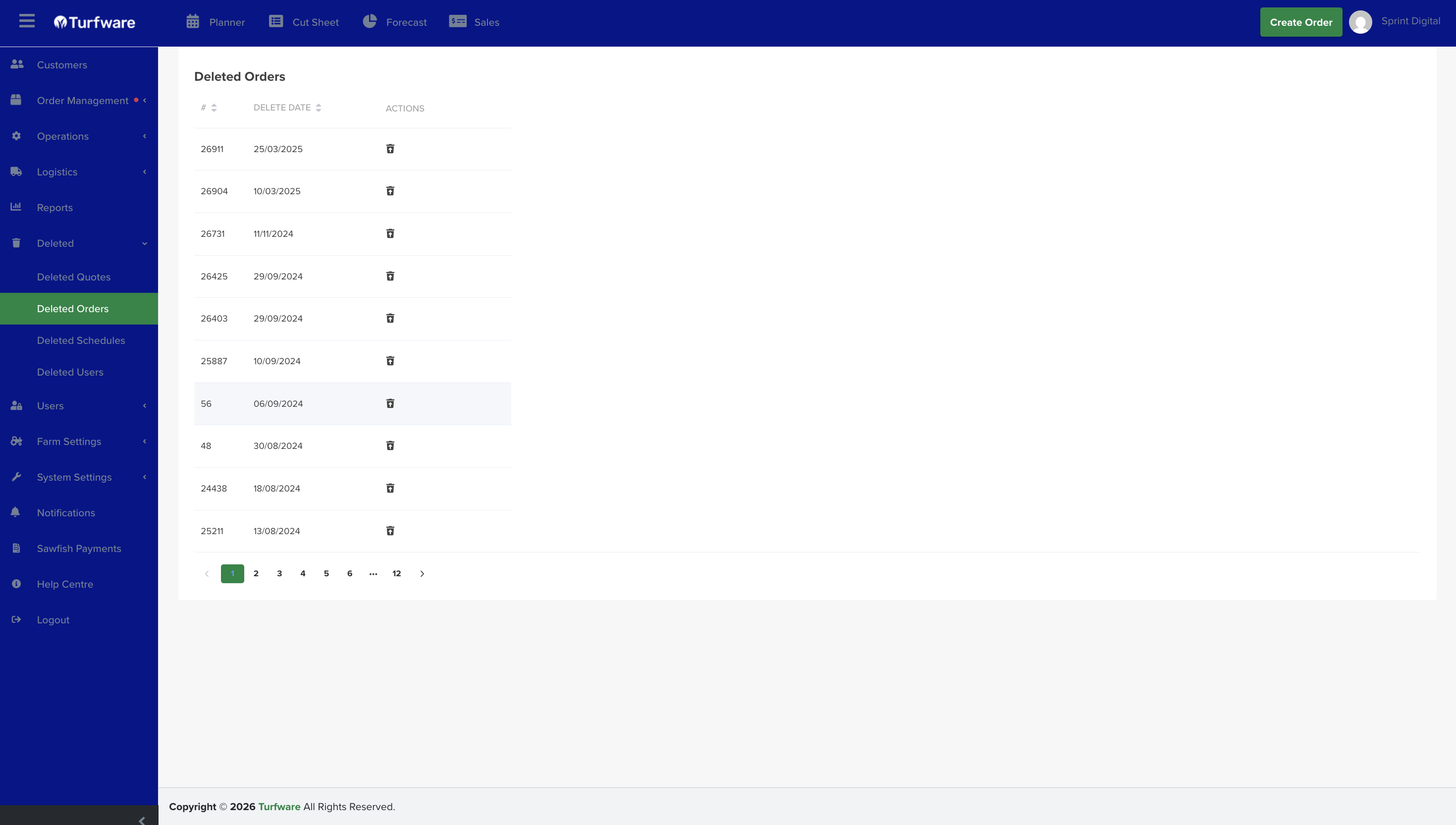
In the left-hand navigation menu, click Deleted. It opens four links: Deleted Quotes, Deleted Orders, Deleted Schedules and Deleted Users.
Restoring a deleted item
- Find the item in the relevant list (Quotes, Orders, Schedules or Users).
- Click the Restore icon in the actions column next to it. The item is restored and reappears in its original location.