Carrier Settings
Carriers are your delivery companies — your own fleet or third-party freight providers. A carrier record sets up who they are, their trucks (which drive delivery capacity), and their drivers. Each carrier page has three tabs: Administration, Drivers and Details.
Where to find it
Left-hand navigation → Farm Settings → Carrier Settings. Click Create to add a carrier, or click a row to edit.
Administration tab
The carrier's details and its trucks.
Details
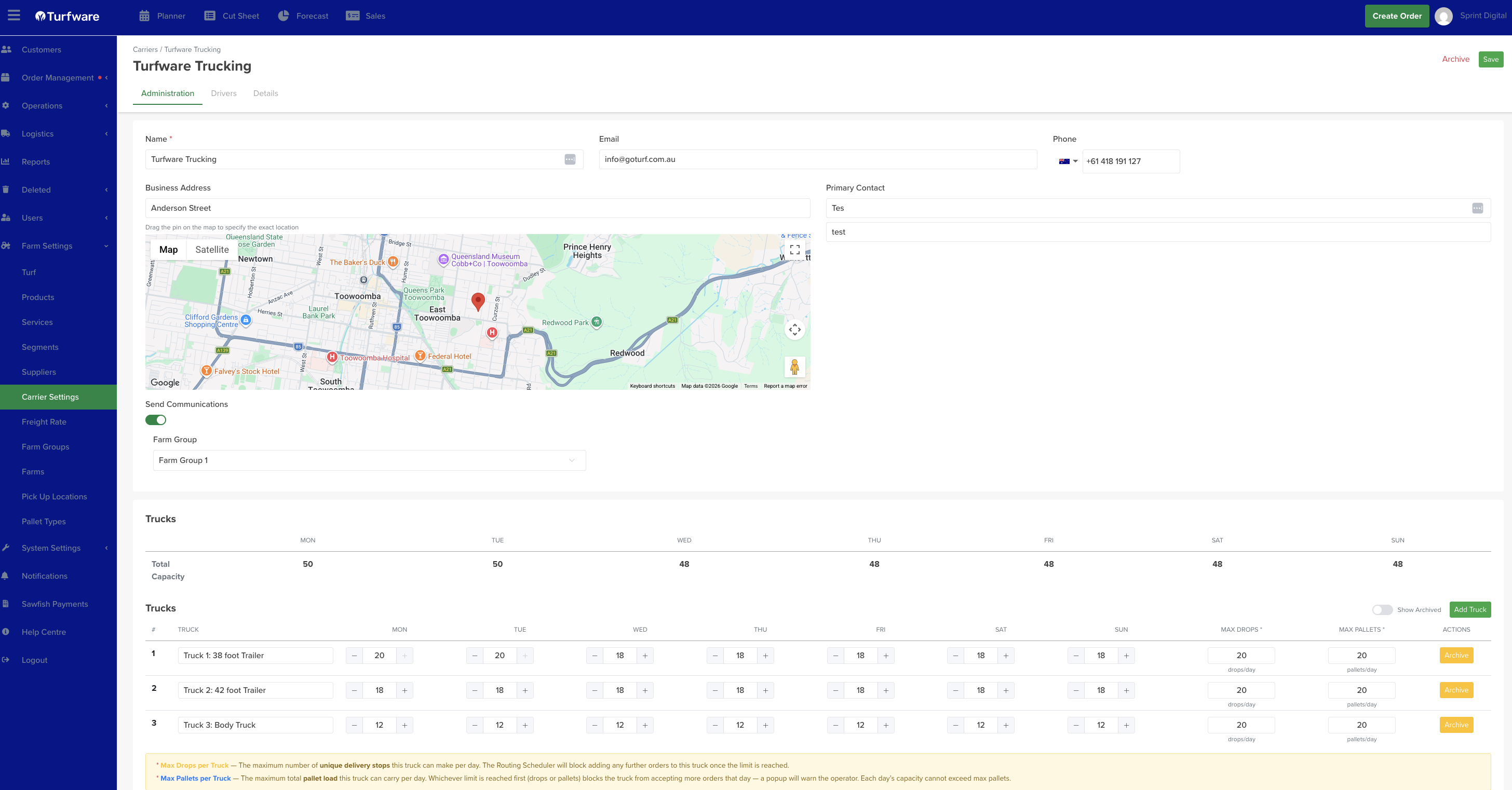
- Name (required), Email, Phone.
- Business Address — with a Google map; drag the pin to set the exact location.
- Primary Contact — the contact's name and role.
- Send Communications — when on, Turfware emails the carrier (at the email above) whenever you assign orders to them for delivery, and those orders flow onto their delivery schedule and route.
- Farm Group — the carrier's primary farm group. (You can link a carrier to more groups from Farm Groups.)
Trucks
Add the carrier's trucks — this is what drives delivery-scheduling capacity. Click Add Truck, name each truck, and set:
- Per-day capacity (Mon–Sun) — the pallet spaces that truck offers each day. If it doesn't run on a day, leave that day at 0 and it won't offer pallet spaces for scheduling. The Total Capacity row sums all trucks per day.
- Max Drops — the maximum unique delivery stops the truck can make per day. The Routing Scheduler blocks more orders once the limit is reached.
- Max Pallets — the maximum pallet load per day. Whichever limit is reached first — drops or pallets — blocks more orders that day (a popup warns the operator). A day's capacity can't exceed Max Pallets.
- Archive a truck to hide it; flip Show Archived to see and reactivate archived trucks.
Drivers tab
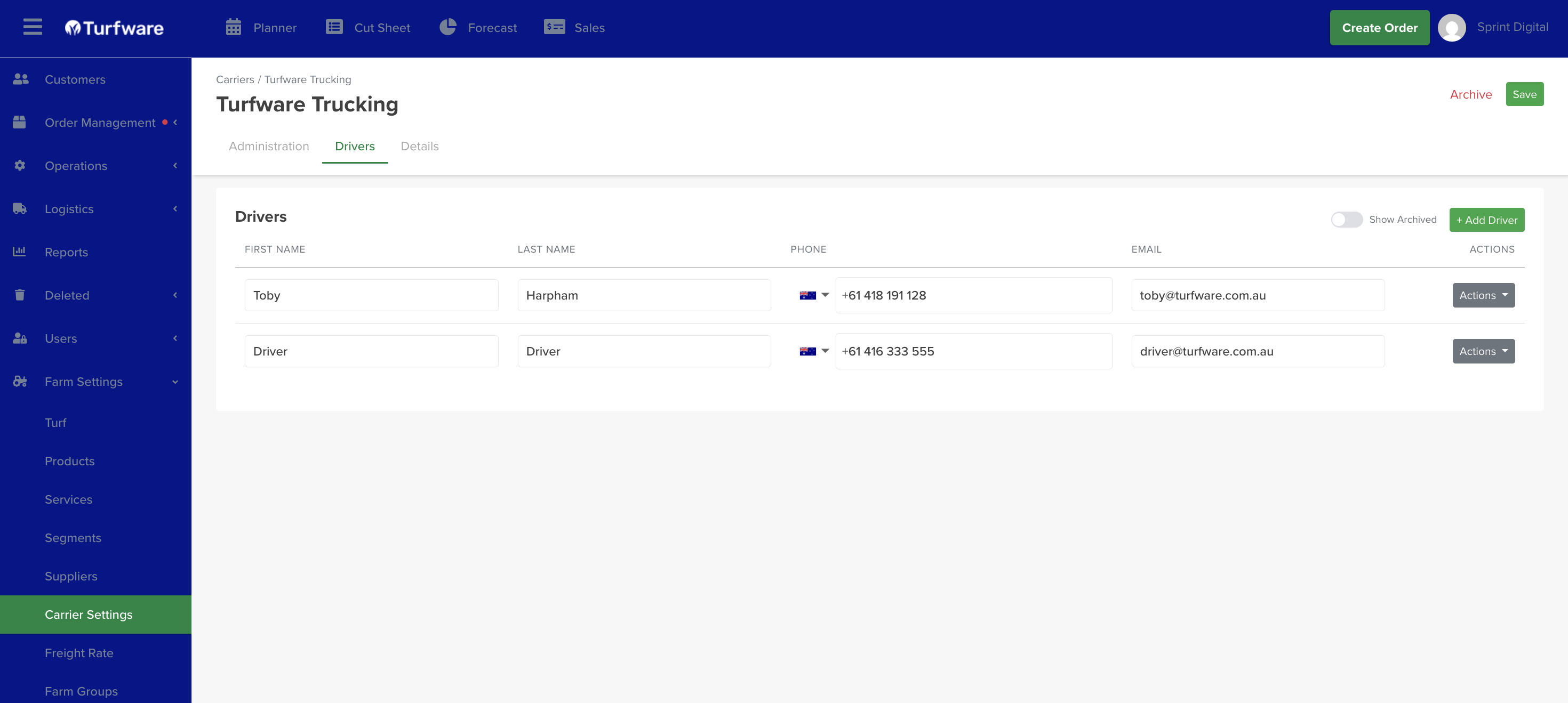
A separate tab for the carrier's drivers. Click Add Driver and enter First name, Last name, Phone and Email — the phone and email are where that driver's communications are sent. Archive a driver who no longer drives (flip Show Archived to see and reactivate them).
Details tab
Holds additional carrier information. (The two tabs above cover day-to-day setup.)