Delivery App
The Delivery App is the driver's tool — receiving the day's runs, seeing each order's delivery details and site contact, navigating to the drop, and confirming delivery with a photo and signature.
This section covers three things: setting up and logging in, using the app day to day, and working through a delivery.
Setting up the app
Drivers are invited from the Backend Portal. When creating a new user whose role is driver, tick the Send Delivery App Invitation checkbox. An email invitation with a download link is sent to them.
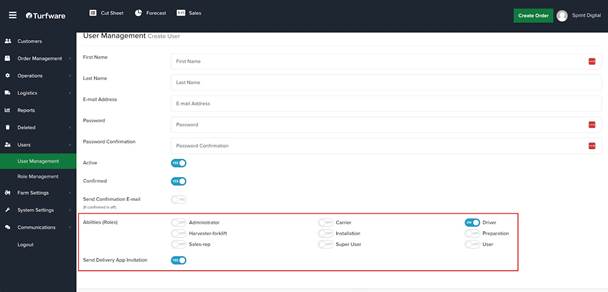
The driver opens that email on their phone and taps the link to install:
- Android — downloads from Google Play.
- iOS — downloads from the App Store.
Logging in
When you open the Delivery App, you land on the login screen.
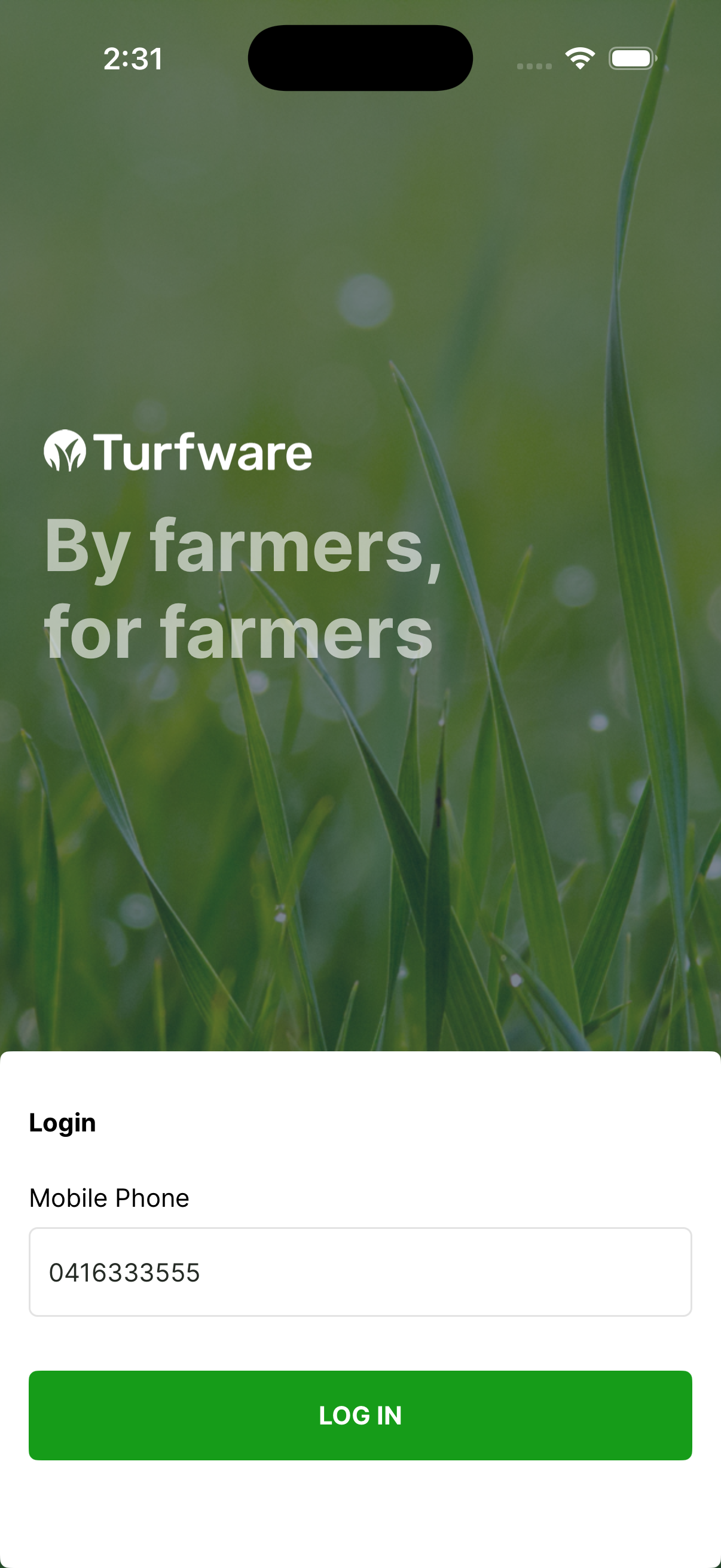
- Enter your mobile number. A one-time code (OTP) is sent to you by SMS.
- Enter the 6-digit code to log in.
Logging out
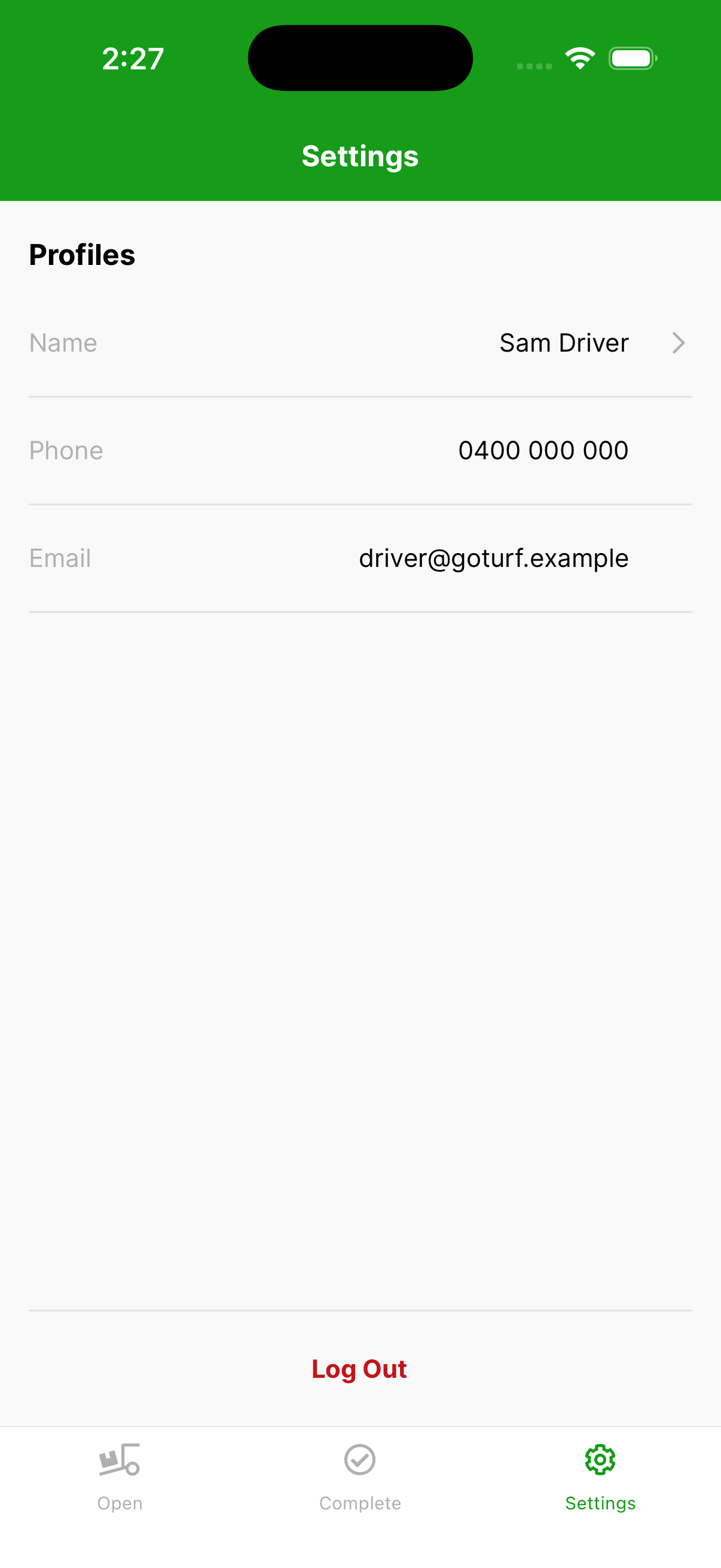
- Tap Settings in the bottom navigation bar. The Settings page shows the driver's profile — name, phone and email.
- Tap Log Out at the bottom, then confirm.