Suppliers
Suppliers are the businesses that provide turf, products, installation or services to you. Setting a supplier up lets you attach them to an order (for example, the installation supplier on a job) and — soon — generate a purchase order (PO) from Turfware that maps straight into your accounting system.
Where to set them up
Go to Farm Settings → Suppliers. Click Create Supplier to add a new one, or click any row to edit an existing one.
1. Details
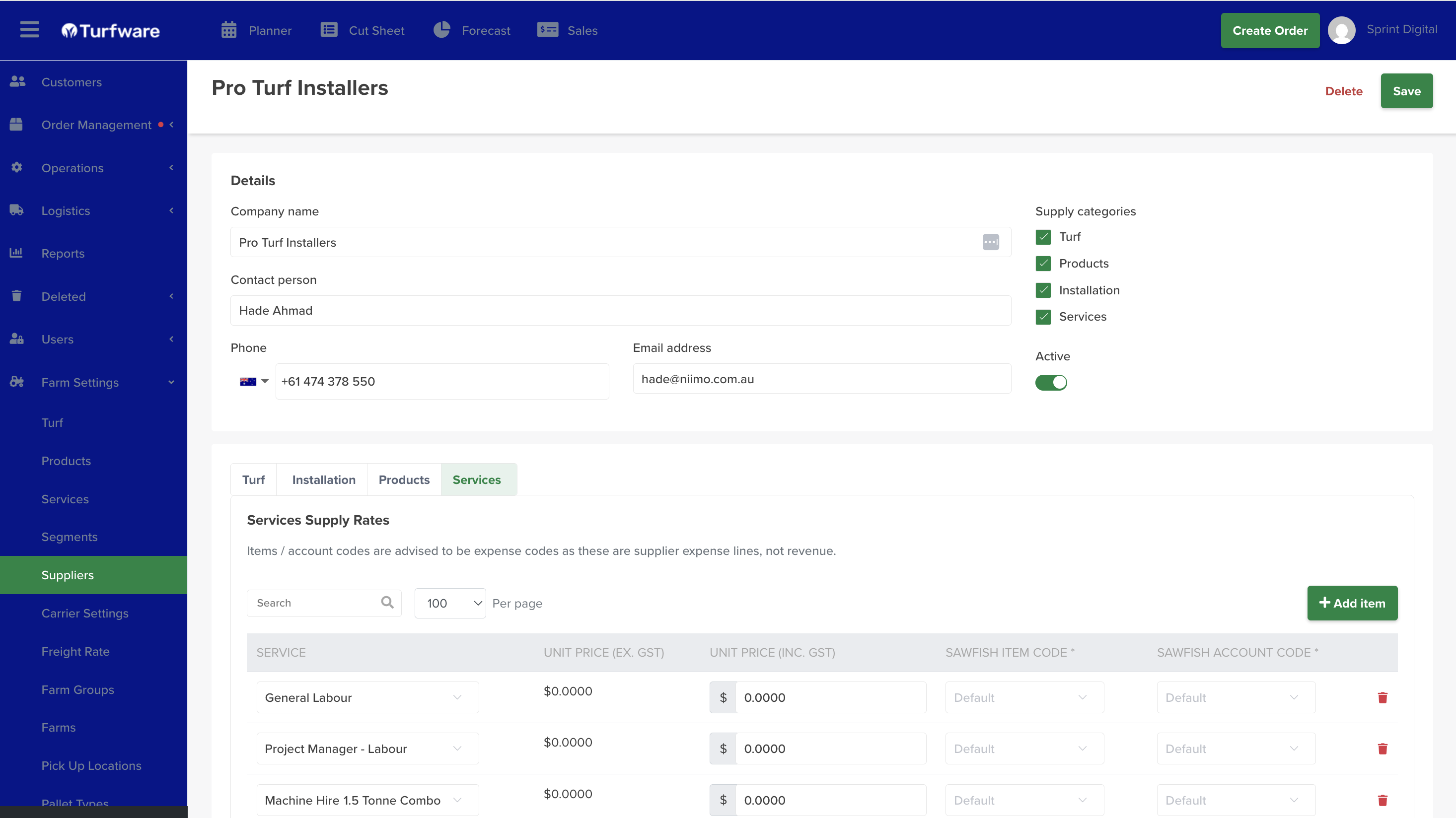
Complete the supplier's details — Company name, Contact person, Phone, Email — and switch Active on.
Then tick the Supply categories the supplier provides to your business: Turf, Products, Installation and/or Services. Ticking a category reveals its matching tab lower down the page.
2. Supply rates — one tab per category
For each category you ticked, its tab shows a Supply Rates table. Complete a line for each item the supplier provides:
- Item — pick it from the dropdown. These are your existing Turf varieties, Products and Services, so set those up first. See Turf Varieties, Products and Services.
- Price — the supplier's rate: Unit Price (ex-GST and inc-GST), or Price / SQM on the Turf tab.
- Sawfish Item Code and Sawfish Account Code — the accounting mapping for that line, so a PO generated from Turfware posts to the right item and account. (PO generation is a feature coming soon.)
Use Add item for more lines.
Use expense codes
These are supplier expense lines, not revenue — so the Sawfish item and account codes should be expense codes, not your sales/income accounts.
The Installation supplier you set up here is the one you then select in an order's Installation section — see Creating & Managing an Order.
Save
Click Save. The supplier is now available to attach to orders (and to future POs) for the categories you set up.
Set the catalogue up first
Because the tabs pull from your Turf, Products and Services, create those first — otherwise the dropdowns will be empty.