Delivering an order
Opening an order
Once a run is open, the Delivery tab lists every drop — the order number, the number of pallets, and the delivery suburb.
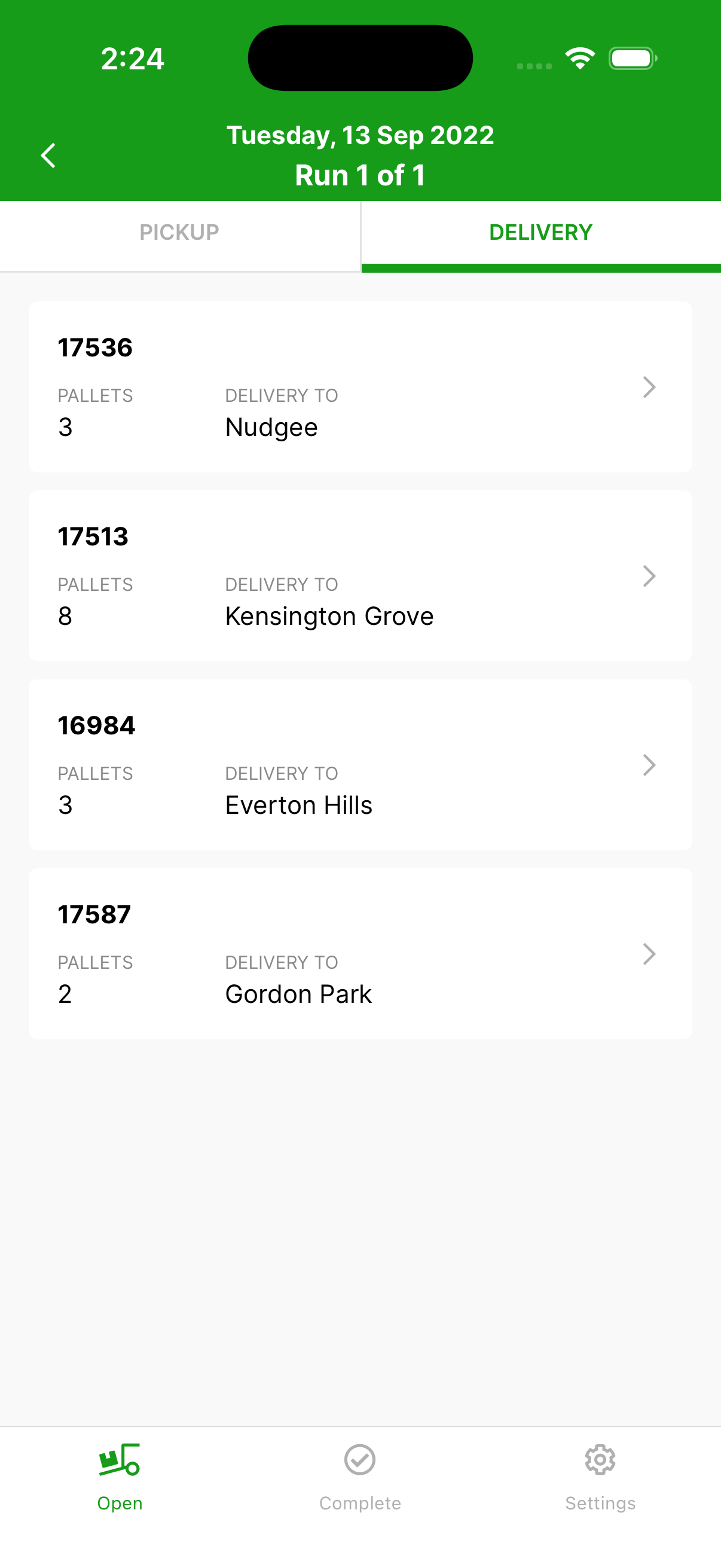
Tap any order to view its full details:
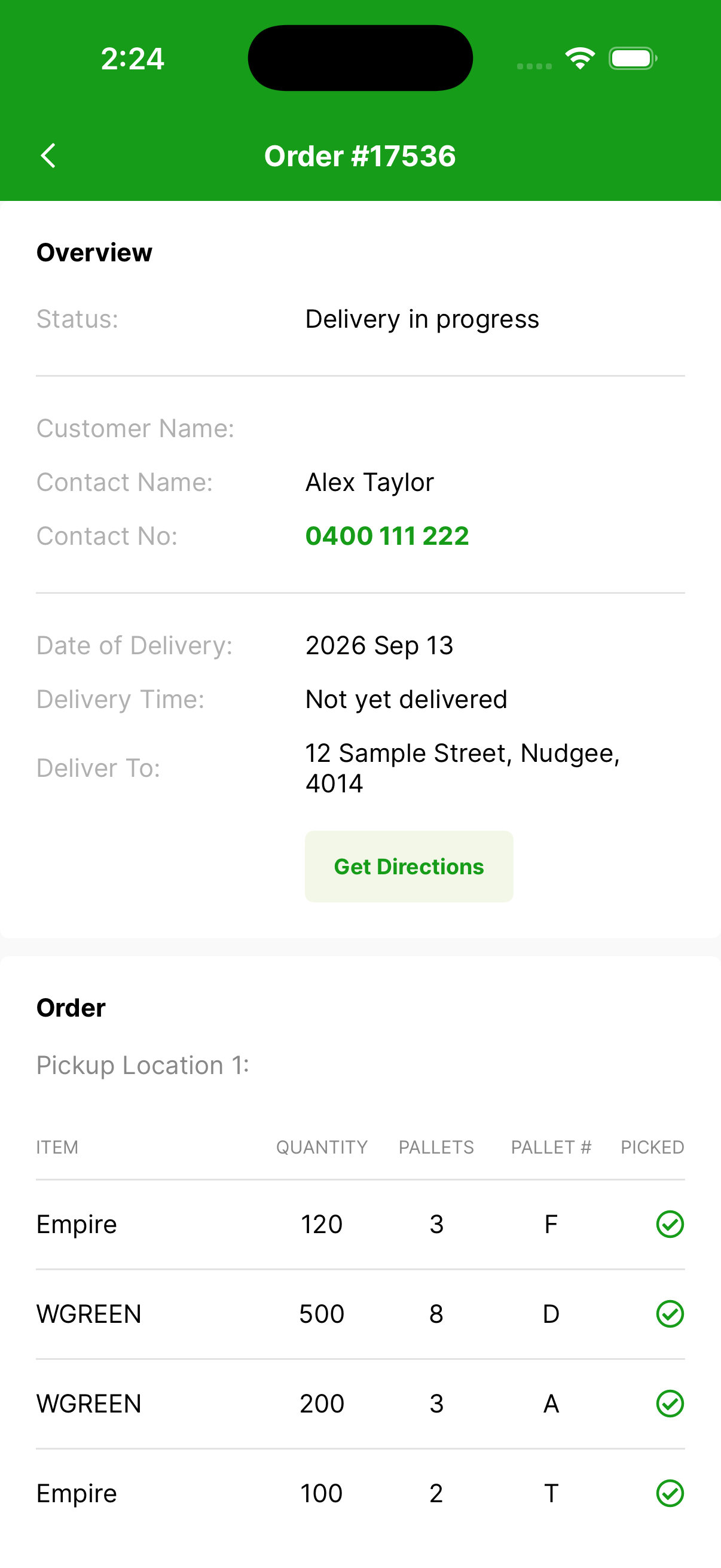
- Status — where the order is up to (for example, Delivery in progress).
- Contact Name / Contact No — the on-site contact. The number is tap-to-dial, so you can call the site with one touch.
- Date of Delivery, Delivery Time, and the Deliver To address.
- The Order section lists each item — turf variety, quantity, pallets, pallet code, and whether it has been picked up.
Getting directions
Tap Get Directions in the order details to open the Maps app with a route to the delivery address.
Completing the delivery
At the bottom of an order, the Verification of Delivery section is where the driver confirms the drop.
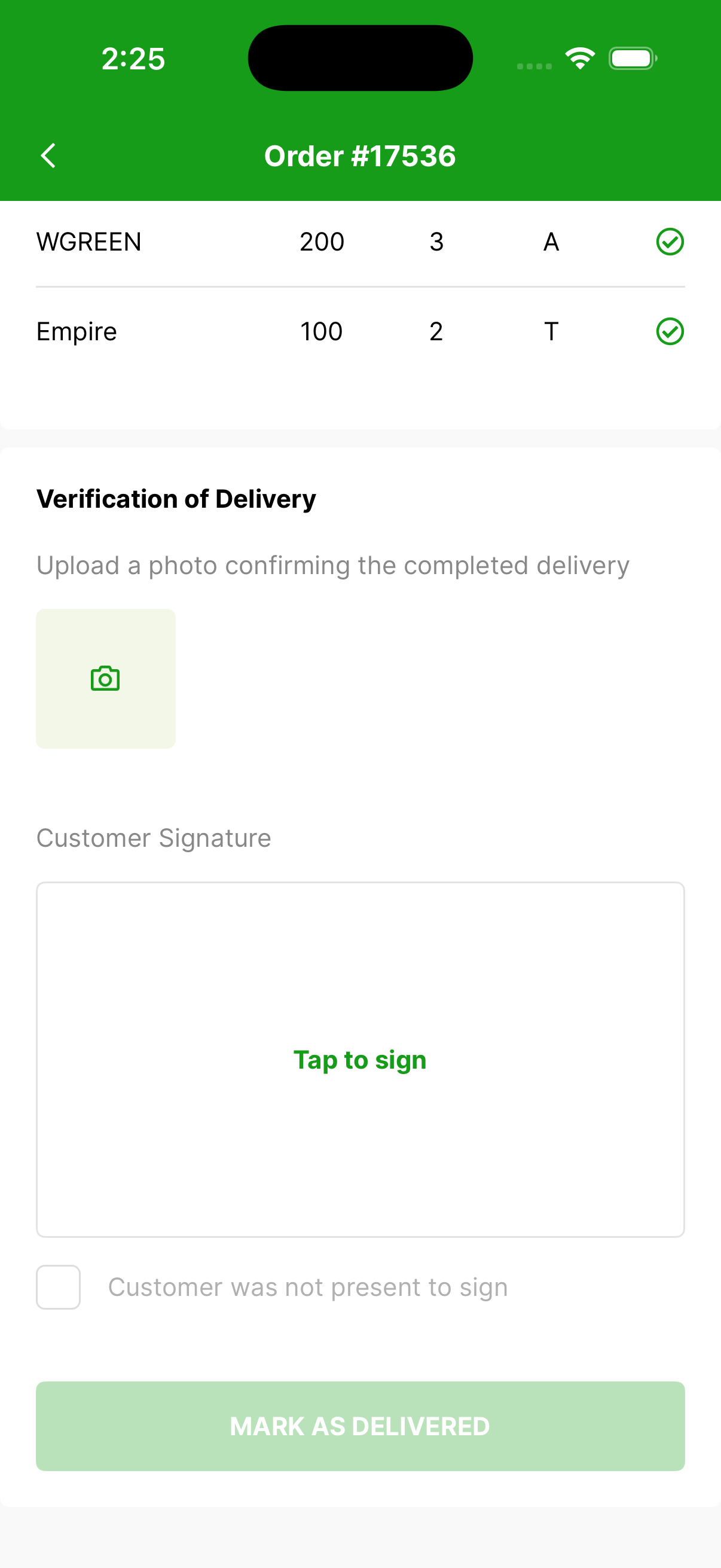
- Take or upload a photo as verification of delivery.
- Ask the customer to sign by tapping the Tap to sign box under Customer Signature.
- If the customer was not present, tick Customer was not present to sign.
- Then tap Mark as Delivered. The delivery time is logged automatically.
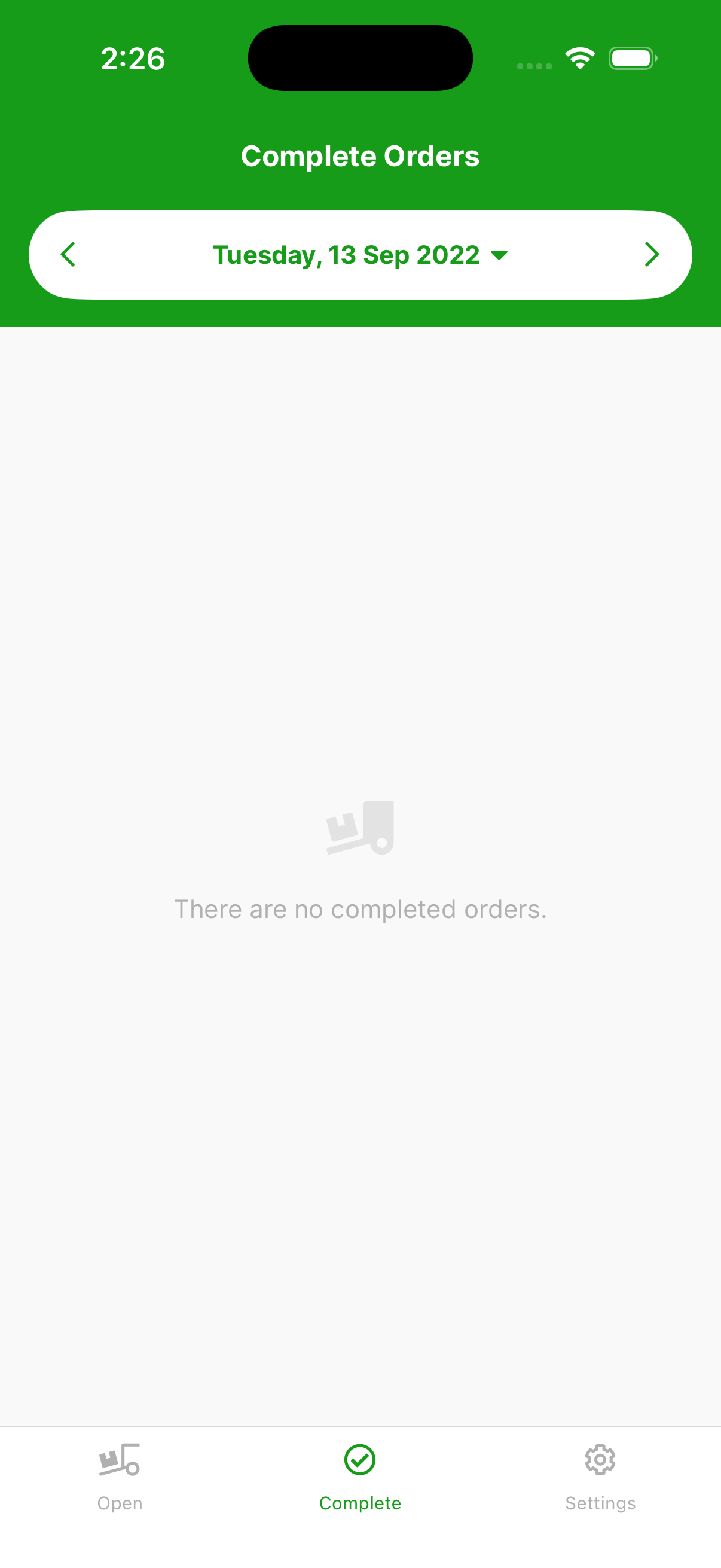
The completed order moves to the completed orders section. To see it, tap Complete in the bottom navigation bar. To carry on, return to the Delivery tab and open the next order.