Quotes
A quote is a priced proposal you send a customer before it becomes an order. Quotes live on their own list and don't enter any operational workflow until they're accepted and converted.
Where to find it
Left-hand navigation → Order Management → Quotes.
Create a quote
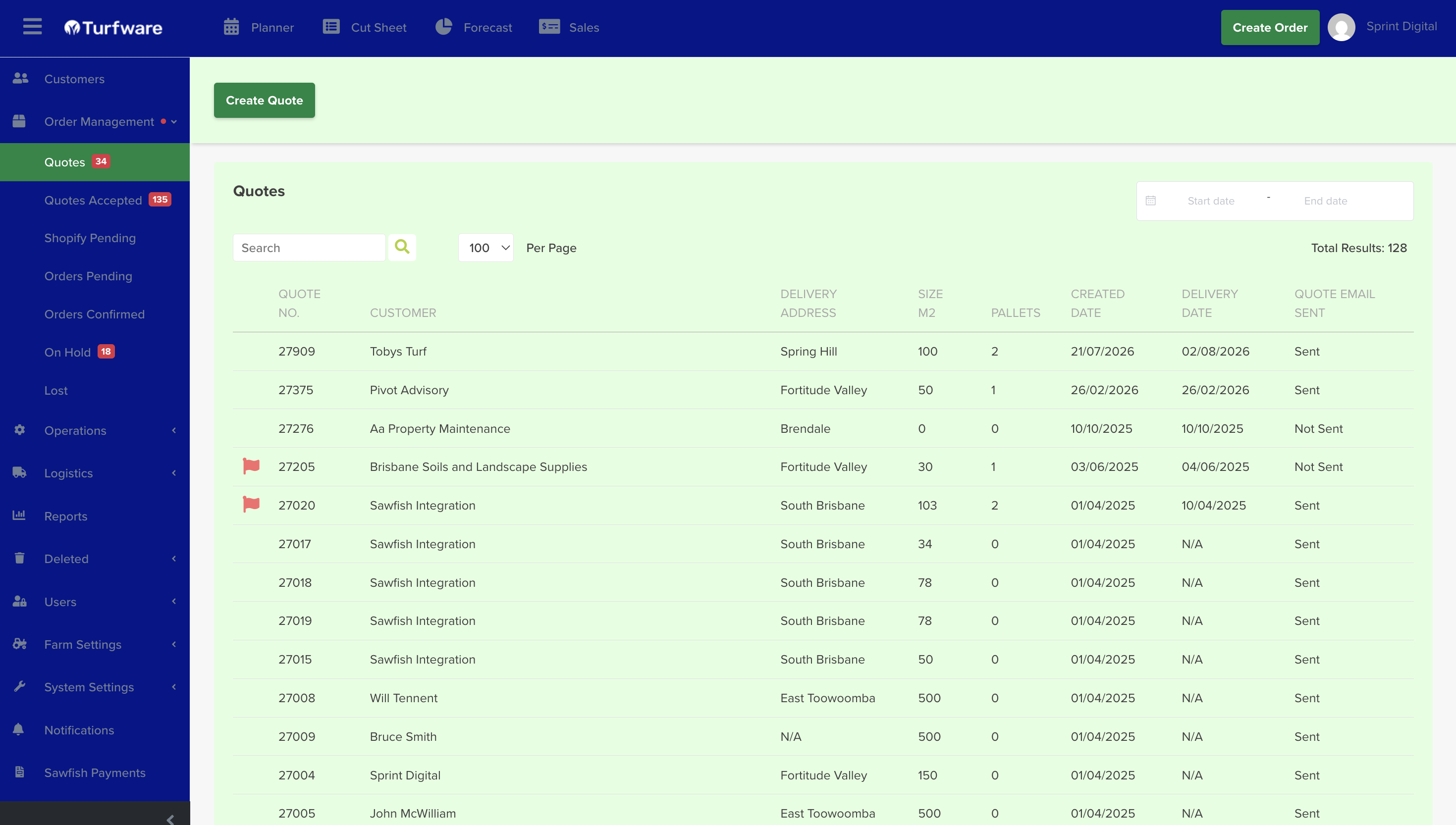
Click the green Create Quote button (top left). Build it exactly like an order — customer, turf, products, delivery — see Creating & Managing an Order.
Decimal quantities on products & services
Products and services now accept decimal quantities — up to two places, e.g. 2.5 — where the item is sold by measure, so you can quote part-loads or fractional units. Whole-unit items stay whole numbers, and every total, including GST and any deposit, recalculates to the cent. (This applies on orders too, since quotes are built the same way.)
Send a quote
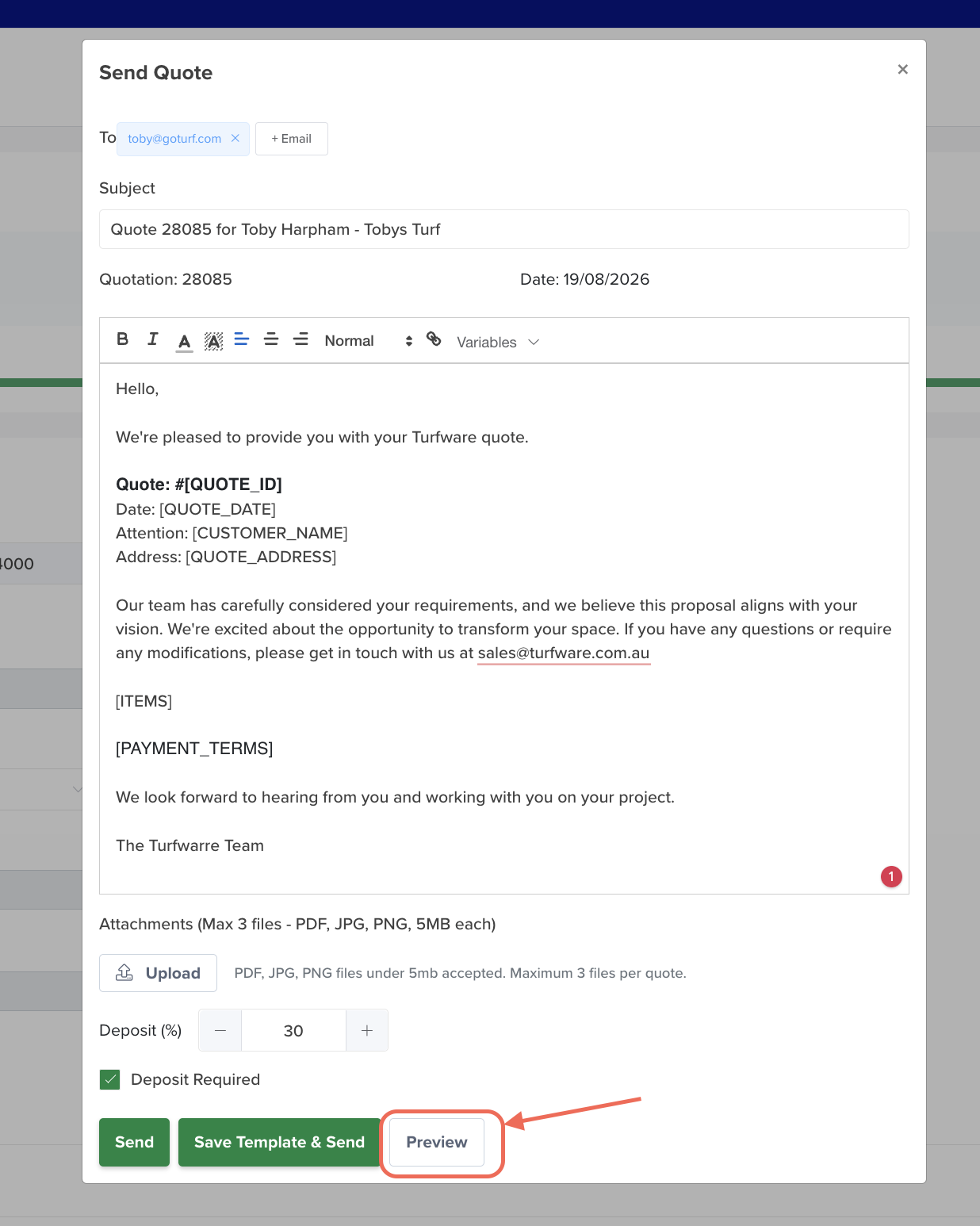
Open the quote and click Send Quote. You can review or edit the email subject, content and recipient, add attachments, and set a deposit percentage if one is required.
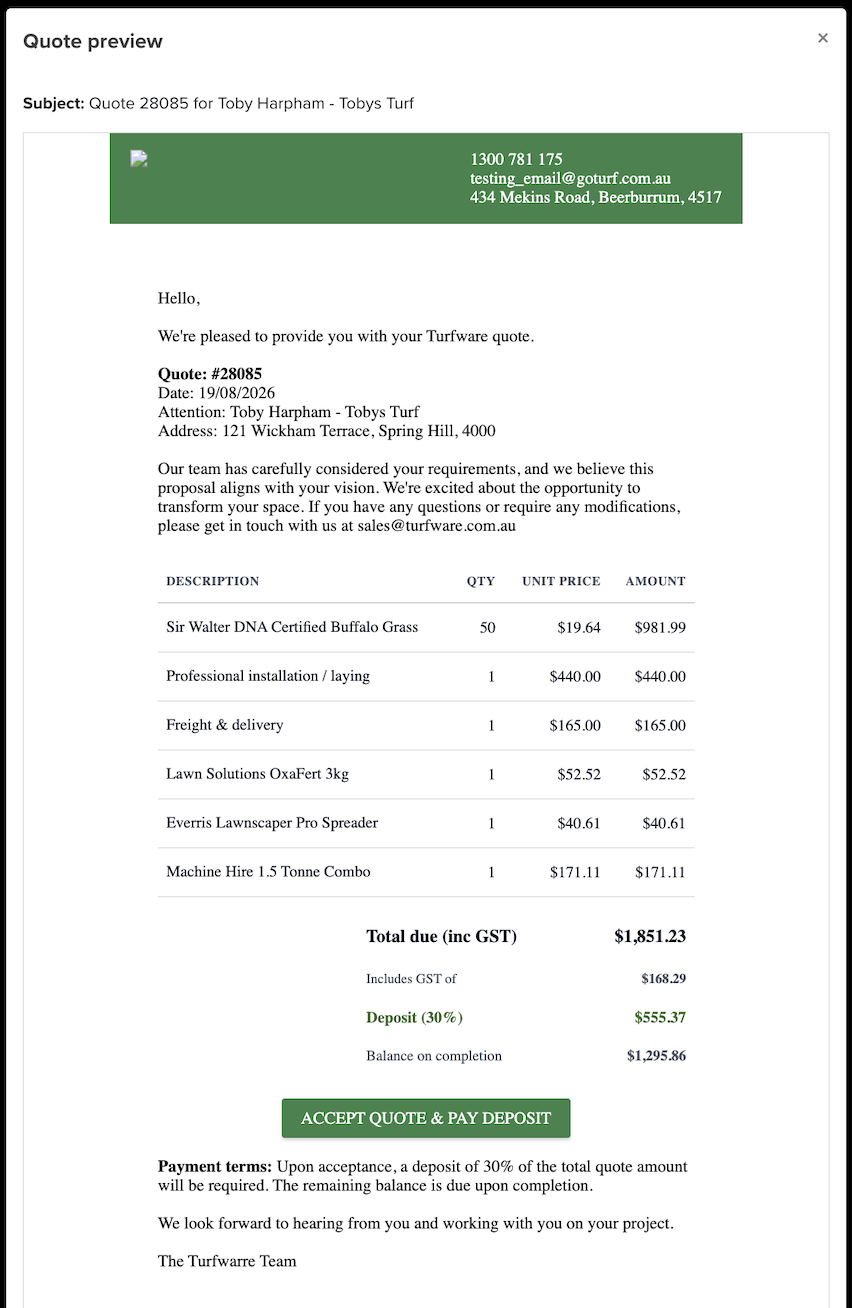
Click Preview to check the quote email before it goes — the preview is like-for-like with what the customer receives. The quote itemises every line — turf, products, installation, delivery and services — and shows GST correctly for your pricing setup (whether your prices are GST-inclusive or exclusive).
Click Send, then confirm the recipient's email address before the quote goes out.
Convert a quote to an order
When the customer says yes, open the quote and click Convert To Order. Confirm the turf to convert, and Turfware creates the order with a status of Pending — ready to move through the order workflow. (If the customer accepts online instead, this happens automatically — see Quotes Accepted.)
Deposit + final invoice (splitting the invoice)
For a job where you take a deposit up front and the balance later:
- Set the deposit account — go to System Settings → Company Information and set the Deposit Payment Account Code to the right Chart-of-Accounts code in your accounting system (Sawfish).
- Create and send the quote — on Send Quote, enter the deposit percentage the customer needs to pay, then Send.
- Customer accepts and pays the deposit — they select the turf variety and click Accept Quote. This generates the deposit invoice, takes them to the payment page, and (on acceptance) creates the order.
- Send the final invoice — open the confirmed order, click the arrow next to Save, and choose Send Final Invoice. The customer receives the final invoice with the deposit already deducted.