Cancelling an order & voiding an invoice
When a job isn't going ahead, there are two separate things to deal with — the invoice (so the customer isn't chased for money they don't owe) and the order itself. Both are done from Turfware.
Void the invoice
Voiding an invoice from Turfware also cancels it in your accounting system (Sawfish) — Turfware does that for you.
- Open the order and go to the Invoicing tab.
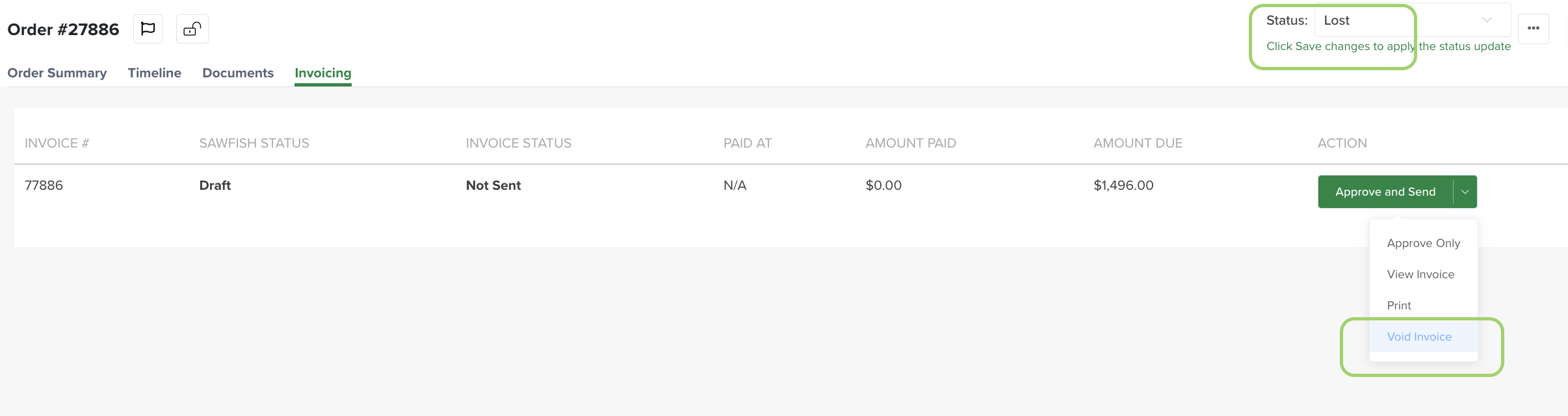
- On the invoice, open its actions menu (the arrow next to Send) and choose Void Invoice.
- Confirm when prompted — "Are you sure you want to void the invoice?".
The invoice is voided in Sawfish, marked VOIDED, and removed from the customer's balance. Nothing more is needed on the accounting side.
Two rules apply to voiding:
- An invoice can only be voided on an order that is Lost or has been deleted — so set the status to Lost first (below).
- An invoice that already has a payment against it can't be voided. Reinstate the order instead, or handle the payment in Sawfish (a credit or refund).
The same screen is where you close the order — set the status to Lost (top right) and Save changes, as below.
Close the order
Voiding the invoice does not close the order. To take it out of your workflow, set the order's status to Lost — see Lost. It's kept as a record of the job that didn't convert.
Deleting an invoiced order
Deleting an order now takes care of the invoice for you. If the invoice is open with nothing paid, you're asked to confirm and Turfware voids it in Sawfish as part of the delete. If a payment has already been taken against the invoice, the order can't be deleted — deal with the invoice in Sawfish first. Moving the order to Lost (above) is still the better choice when you want to keep a record of the job. See the Delete section.